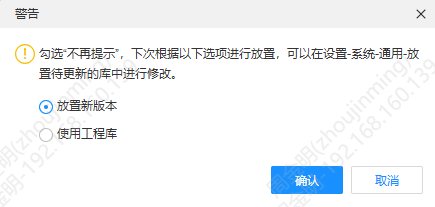
Placing Devices, Symbols and Footprints Pending Update
When placing a device, symbol or footprint, if another version exists in the project library, you can choose the workflow according to your preference.
Entry
- Top Menu - Place - Device / Symbol / Footprint (triggered when the bound library has a pending update)
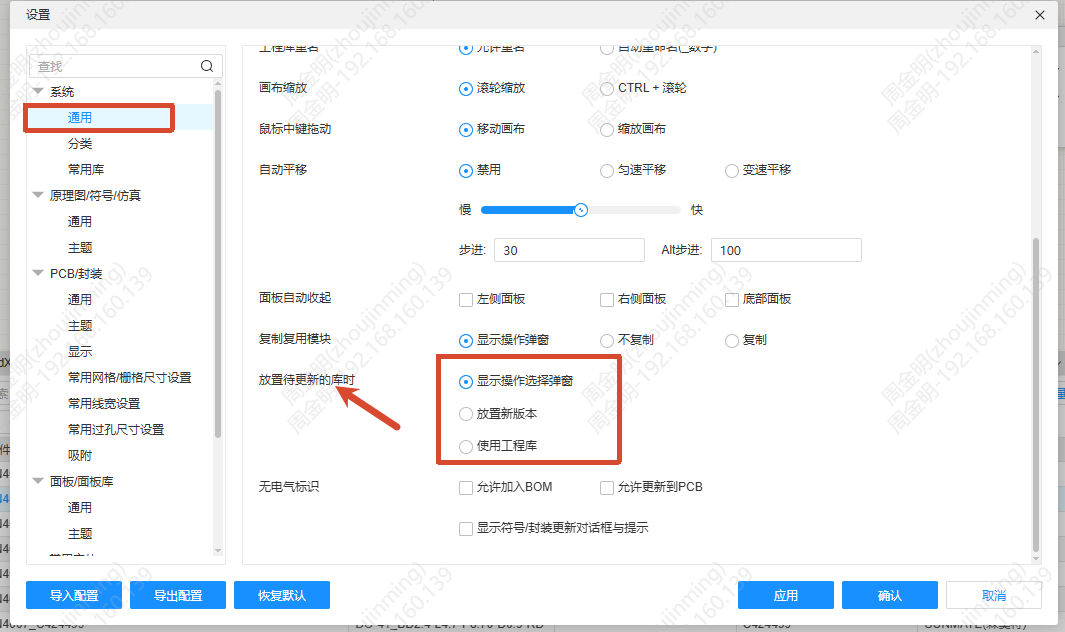
- Top Menu - Settings - System - General - Placement of Libraries to be Updated
Steps
- When placing a device, symbol or footprint, if another version exists in the project library, enter the corresponding workflow according to your preference:
- Show the operation selection pop-up window: a pop-up window appears and lists the update items related to the content to be placed
- Place the new version: the new version is added to the project library directly and enters the placing state
- Use project library: place with the current project library without updating
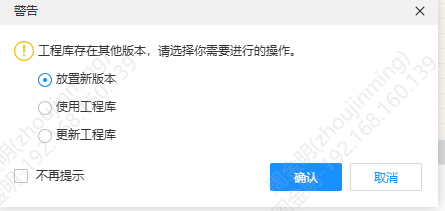
- In the operation selection pop-up window, choose:
- Click Place the new version; the new content is added to the project library, snaps to the cursor and enters the pending placement state
- Click Use project library to place the current project library content directly
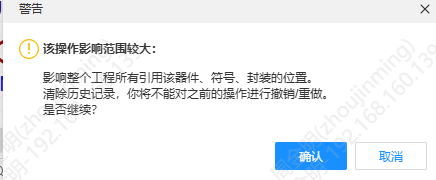
- Click Update Project Library to open a secondary confirmation pop-up window
- When Don't show again is checked, a prompt pop-up window appears; after you confirm, the selected option is saved to your personal preferences and the window will not appear again