

Export PADS
EasyEDA Pro supports exporting files in PADS 9.5 format.
Disclaimer
- Due to differences in format design and graphic elements, we cannot guarantee that the exported PADS files will be completely consistent (especially regarding text size and position). Please be sure to carefully check the files after opening them in PADS. Do not place an order without checking. EasyEDA Pro does not guarantee the absence of any errors!!!
- EasyEDA Pro will not be responsible for any losses caused by library errors and format conversion errors!!! If you do not agree, please do not export to PADS!!!
- If you are going to place an order for PCBs, it is recommended to generate Gerber files.
- Please do not repeatedly export your schematic or PCB in PADS format and then import it back, as this operation may result in loss of details.
- If you find significant discrepancies between the exported file and the original design, please contact us and we will do our best to correct them. https://prodocs.easyeda.com/en/faq/contact-us
- If you are exporting a library file, please make sure to open the export in Google Chrome on a computer equipped with a graphics card (opening a PCB or footprint requires graphics card support).
Procedure
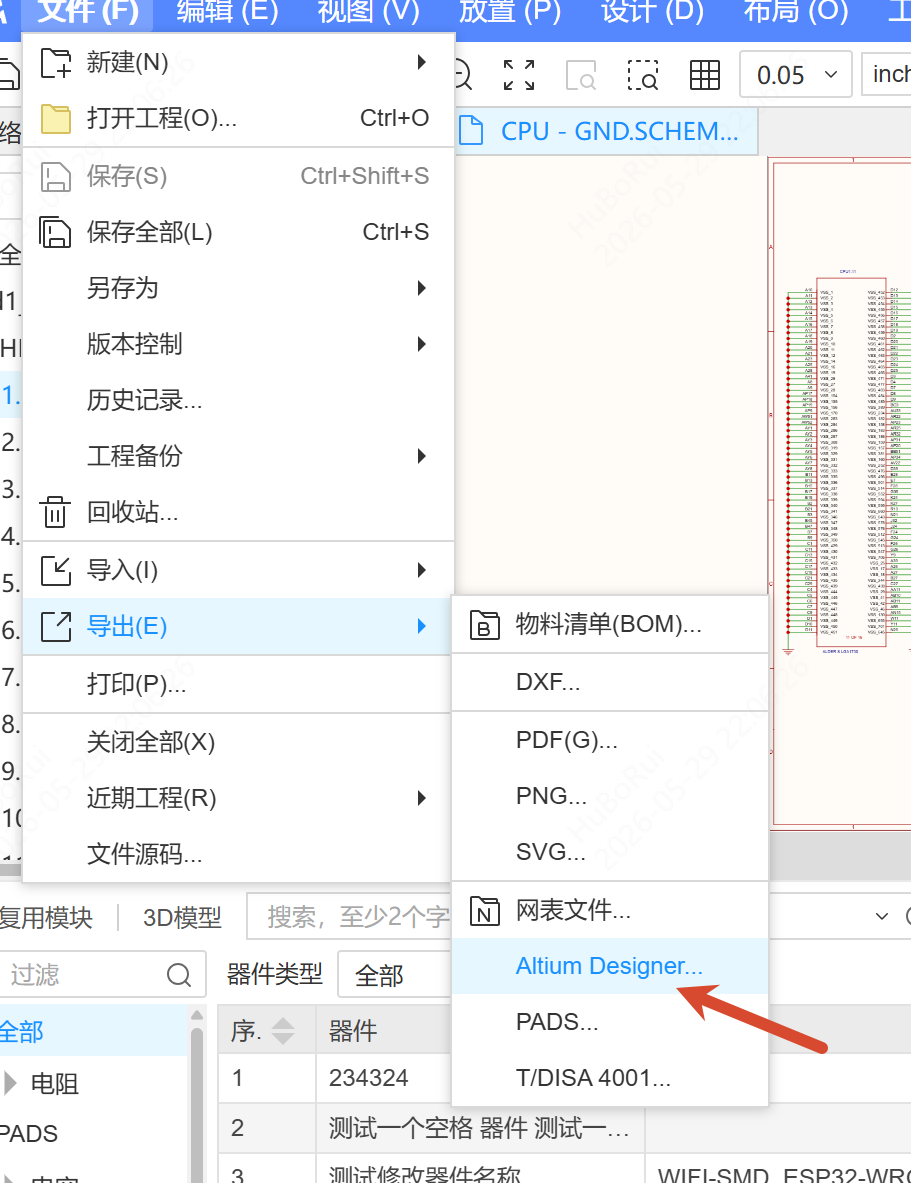
Entry: Top Menu - File - Export - PADS. Or: Top Menu - Export - PADS.
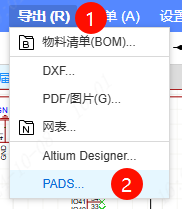
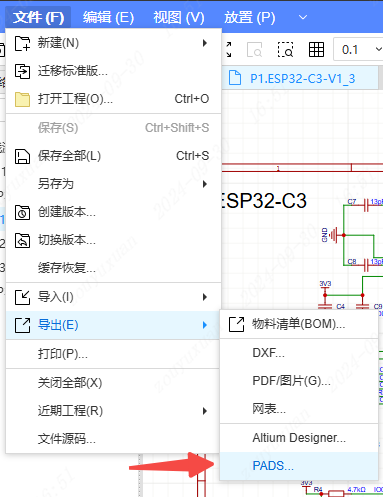
After clicking "PADS", the following window appears.
In the Export Object drop-down box of the export dialog, select the export range:
| Option | Description |
|---|---|
| Project | Export the entire project (default) |
| Current Board | Export the currently opened board and all its contents |
| Current Schematic | Export all pages under the current schematic |
| Active File | Export the currently opened file |
| Other Board/Schematic/PCB | Export other free-standing boards, schematics or PCBs in the project |
The exported file contains only the contents within the selected range.
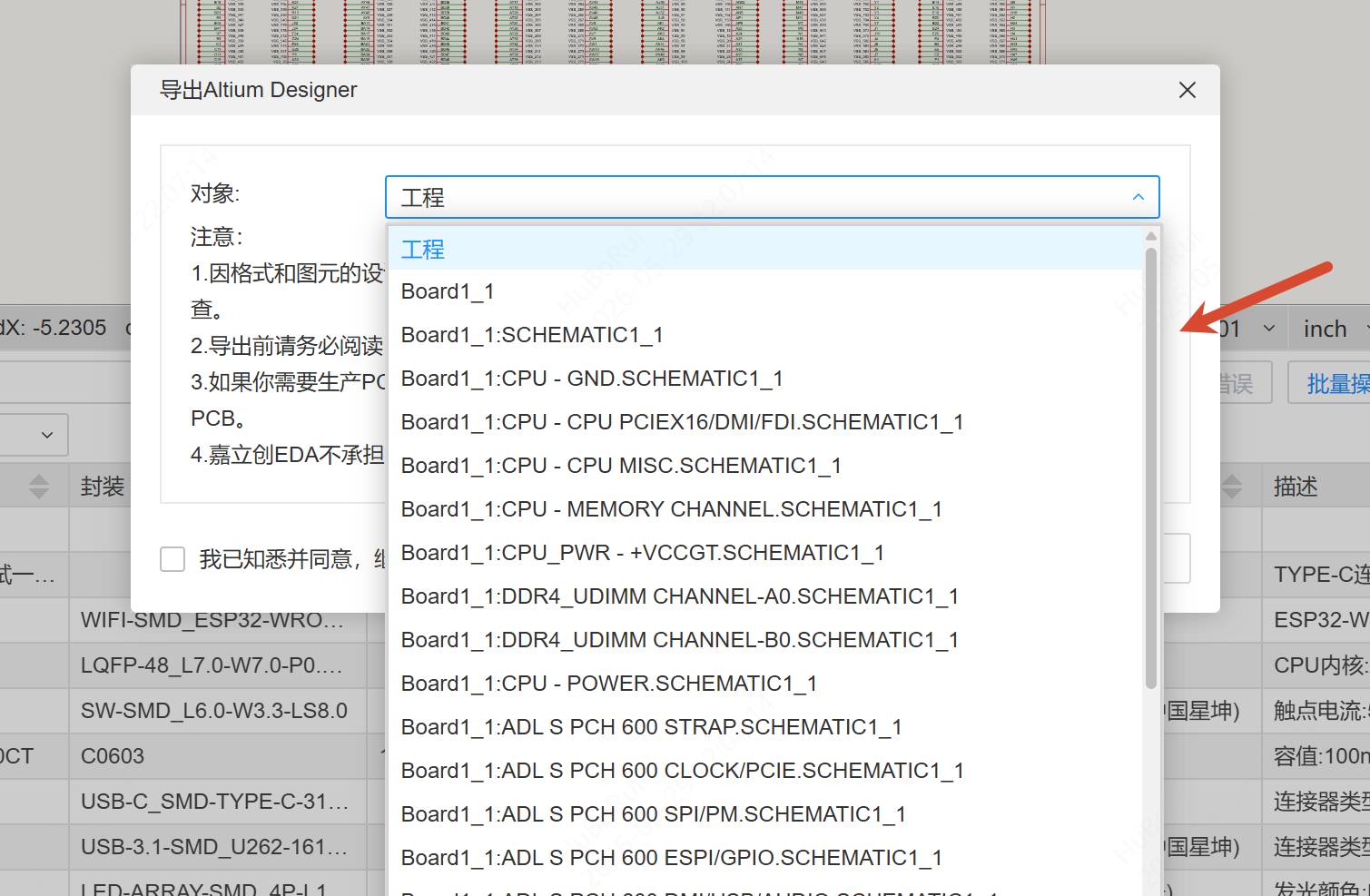
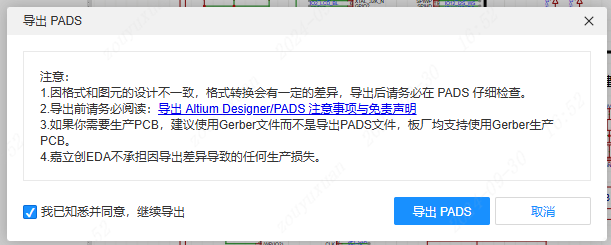
After clicking "Export PADS", the corresponding archive file is generated.

Note
When a PCB that has been exported is imported into PADS again, a layer count mismatch may occur.
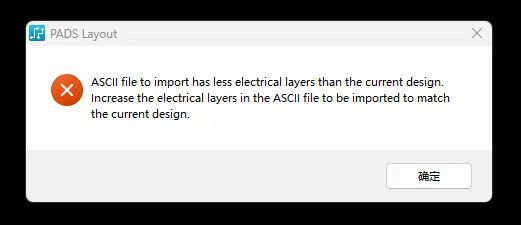
In this case, go to PADS Settings - Layer Definition and click "Max Layers" in the lower right corner of the "Layer Settings" window that appears.