

Right Panel - Transparency
Quickly adjust the transparency and outline display mode of primitives such as copper, tracks and pads from the right display panel, without going into the Theme Setting.
Entry
Right display panel, expand the Transparency category.
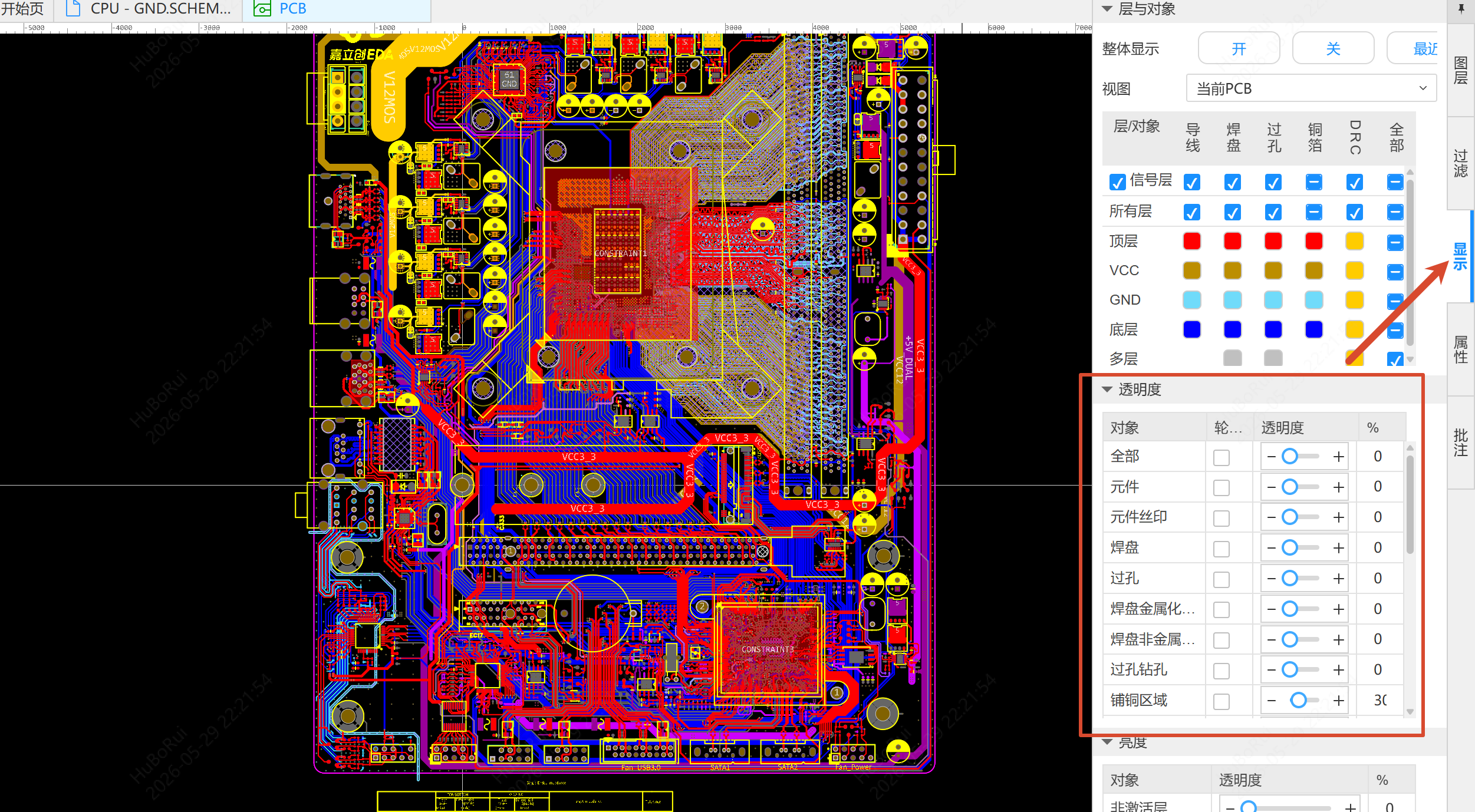
Adjusting Transparency
- Find the target primitive type in the Transparency category (Copper Region, Track, Pad, Via, etc.)
- Drag the slider to adjust the transparency, or click + / - to fine-tune it; you can also double-click the percentage cell to enter a value directly
- The canvas responds to the transparency change in real time
Check All to adjust the transparency of all primitives at once.
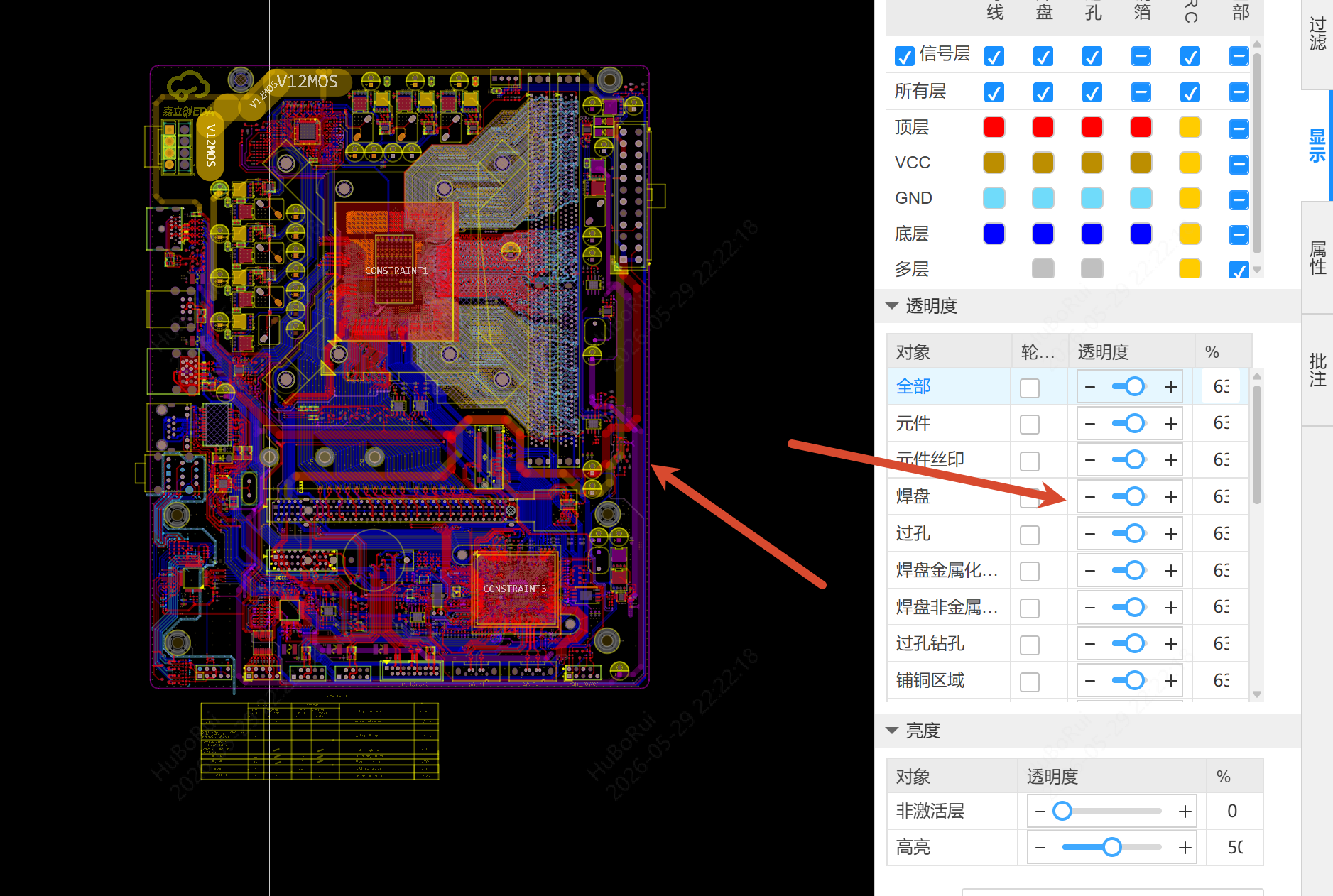
Outline View
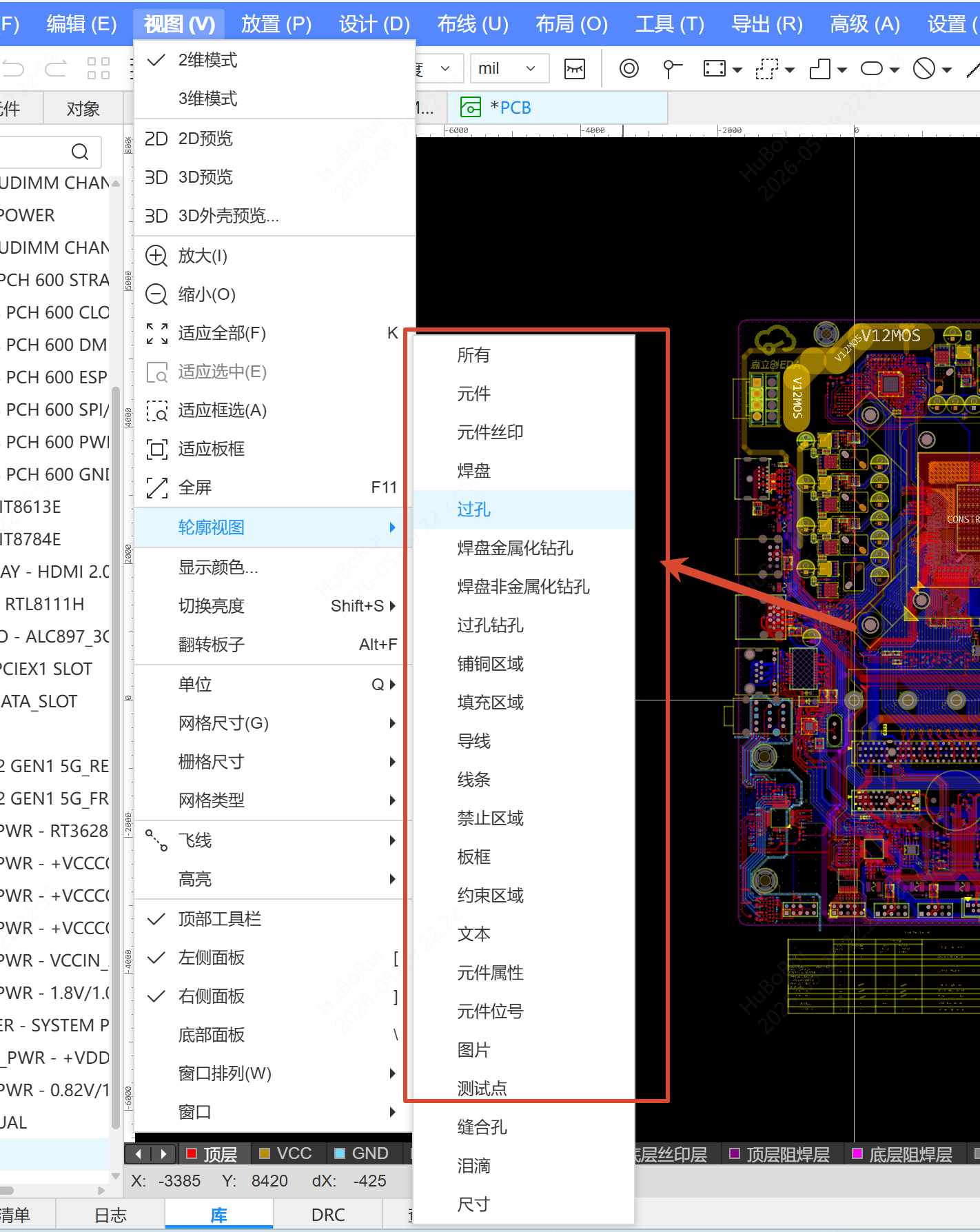
Check the corresponding primitive in the Outline View column and that primitive type switches to outline display mode. Check All to control all primitives at once.
In Top Menu - View - Outline View you can switch all primitives or switch by individual primitive type; this is linked with the right panel.
Brightness
The Brightness category provides shortcuts to three existing features:
- Inactive Layer Transparency: adjusts the transparency of layers other than the current layer
- Highlight: adjusts the transparency of highlighted primitives
- Layer Brightness: switches the layer brightness mode