Jump to
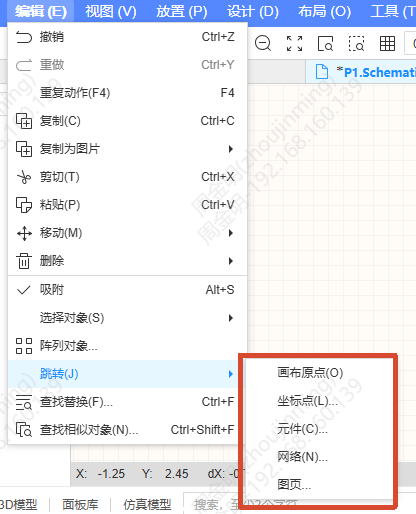
Use the Jump to function in the top menu to quickly move the canvas view to the canvas origin, a specified coordinate, a component, a net, or a page.
Entrance
- Schematic: Top Menu - Edit - Jump to (J) - Canvas Origin / Coordinate / Component / Net / Page
- PCB: Top Menu - Edit - Jump to (J) - Canvas Origin / Coordinate / Component
Procedure
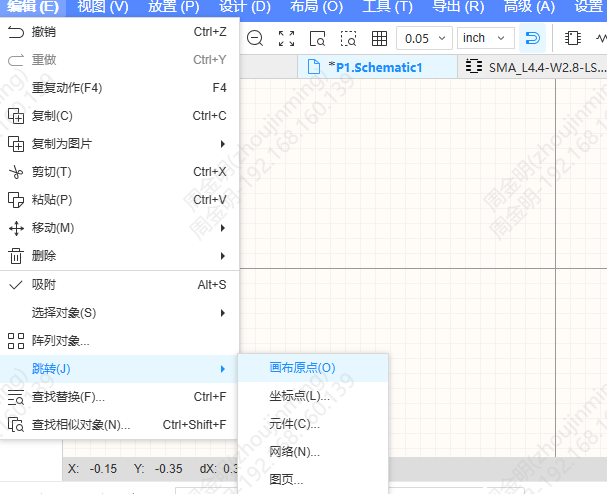
Jump to the canvas origin
Click Canvas Origin, and the view is centered on the canvas origin at the current zoom ratio.
Jump to a coordinate
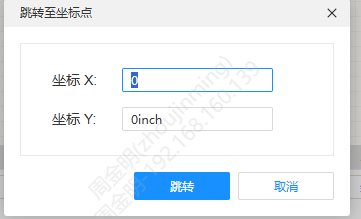
- Click Coordinate. A coordinate input dialog appears in the center of the screen, with the X axis input box focused by default.
- Enter the X and Y coordinate values; use the Tab key to switch between the input boxes.
- The input boxes support arithmetic expressions (such as
100+50,200/2). The result is calculated automatically when the box loses focus, and the original value is restored if the expression is invalid. - Press the Enter key to confirm, and the canvas pans automatically so that the specified coordinate is centered. The coordinate unit follows the current configuration.
Jump to a component / net (schematic)
- Click Component or Net. The jump box appears in the upper right corner of the canvas, with the input box focused by default.
- Select the filter condition: Designator, Name, Footprint, Net.
- Enter the content to find. Matching is performed based on the selected condition, and the result is displayed in real time as "current index/total".
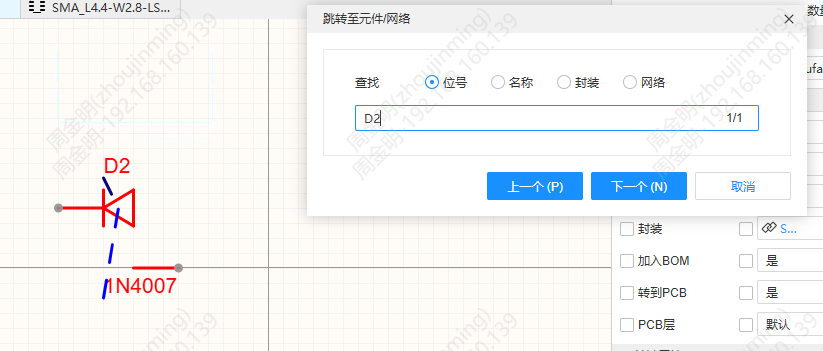
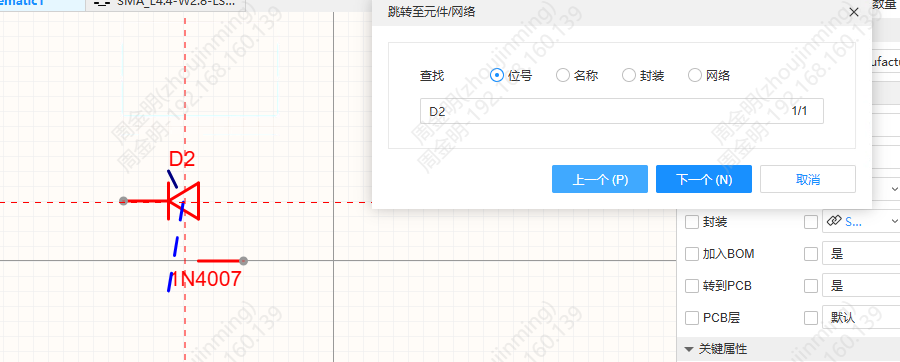
- The first match is automatically centered on the canvas and overlaid with crosshair guide lines to help identify it.
- Click Previous / Next or press Enter to switch between matches; it wraps around automatically when going beyond the total. When the input box is not focused, you can use the hotkeys P / N to switch.
- The input box supports the wildcards
*and?(for example,R*matches R1 and R2); when wildcards are used, it switches to fuzzy search automatically. - Cross-page search is supported. If the relevant page is not open, it is loaded automatically and the jump is completed.
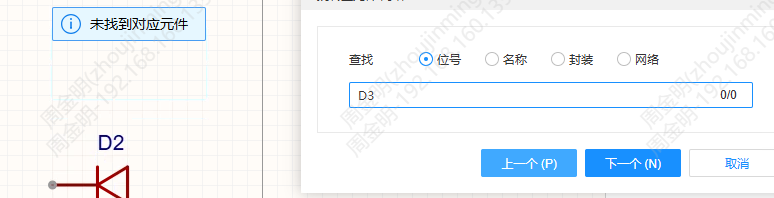
When no object is found, a toast message appears: No matching component found.
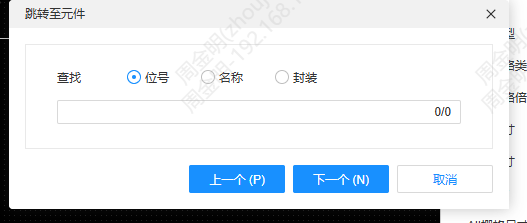
Jump to a component (PCB)
The dialog is named "Jump to Component", the net filter option is removed, and the rest of the functionality is the same as in the schematic.
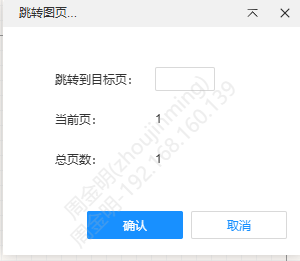
Jump to a page (schematic)
Click Page, select the target page, and the view jumps to it directly. This function has been added to the top menu bar in addition to the right-click menu.