

Pad Custom Attribute
Add custom attributes to footprints and pads in the Footprint Editor and the PCB Editor, to record specific information such as production requirements and test parameters.
Entry
- Attribute: Check "Pad" in the object range
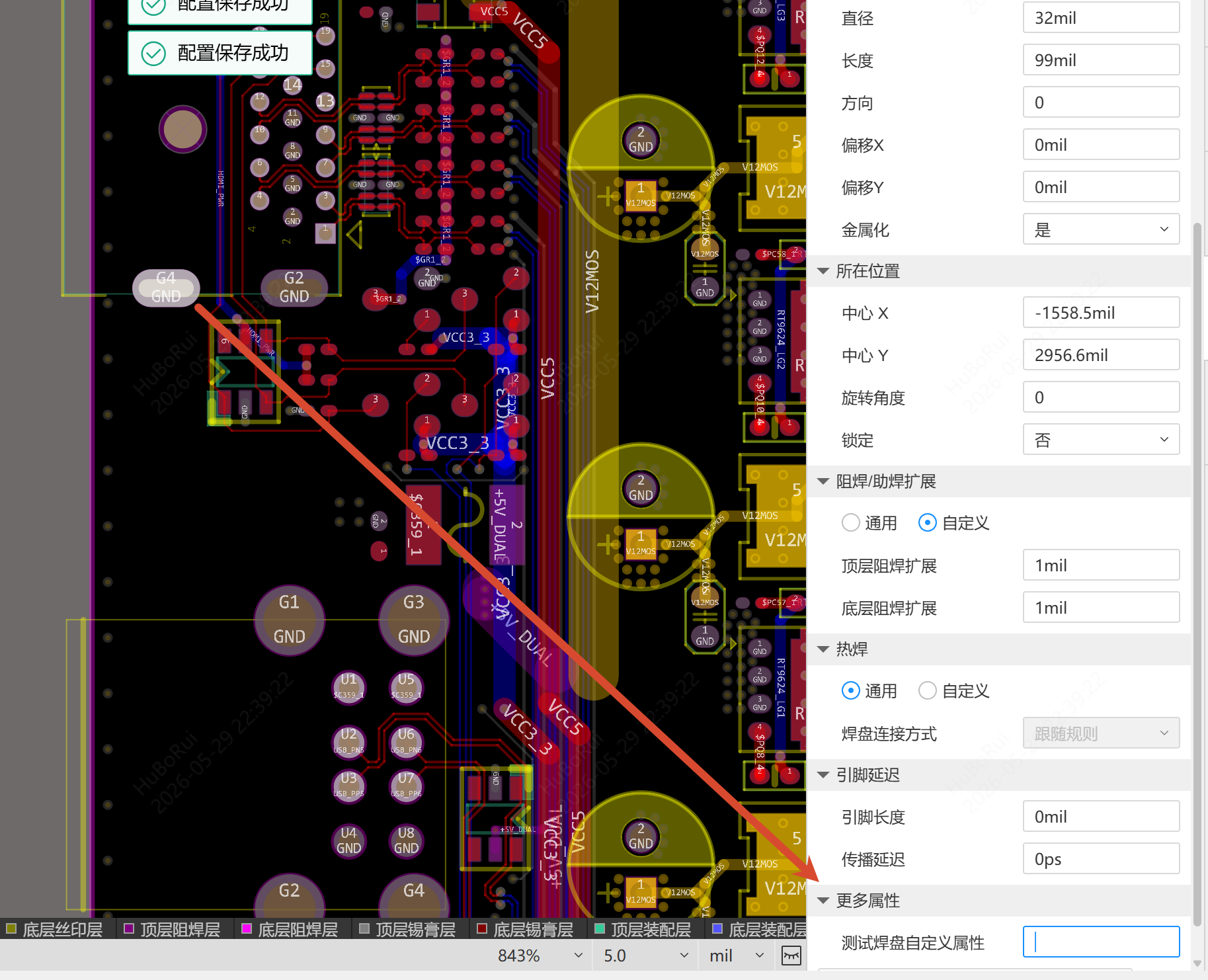
- Footprint Editor: Left property panel, or the property panel after selecting a pad - More Attributes
- PCB Editor: The property panel after selecting a pad - More Attributes
Steps
Add a Custom Attribute
- In Attribute, confirm that "Pad" is checked in the object range
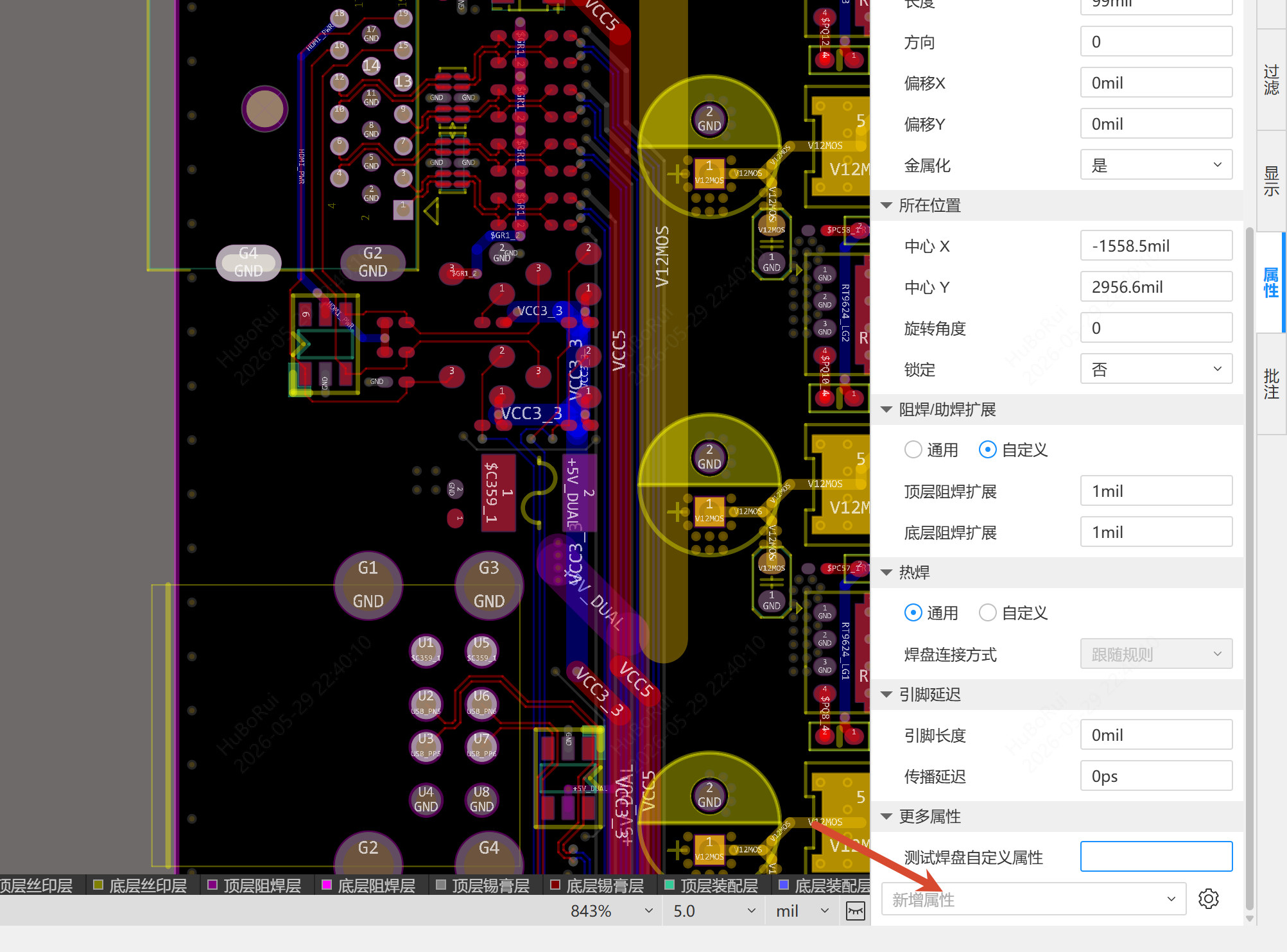
- In the Footprint Editor, select a footprint or a pad, and select the attribute to be added in the drop-down box of the property panel
- Set the attribute value
After selecting a pad inside a footprint, the More Attributes category appears at the bottom of the property panel, where pad-level custom attributes can be added.
Delete an Attribute
Right-click the custom attribute and select Delete Attribute. If the attribute comes from the footprint level, the value of the next level is displayed according to the priority after deletion; if there is no lower level, the row disappears.
Attribute Priority
In the PCB Editor, the display priority of component attributes is: Component > Device > Footprint. The priority of pad attributes is: PCB > Footprint. An empty value can be stored to override the attribute of a lower level.