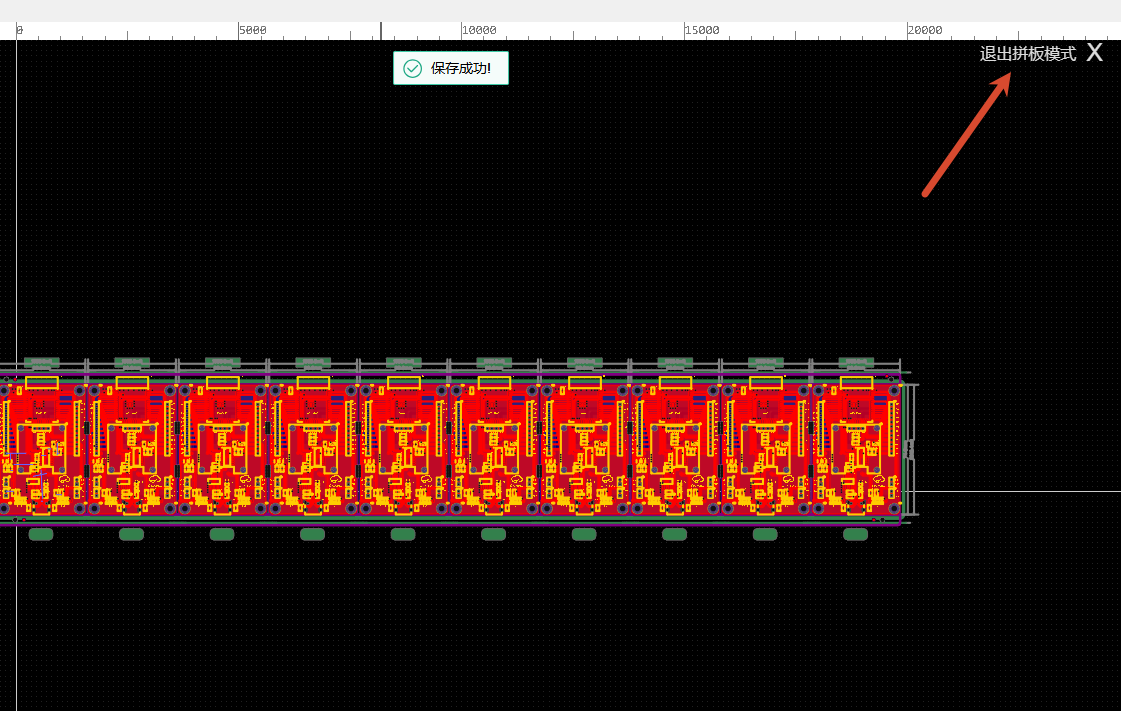
Advanced Panelize
Set array panelize parameters in advanced panelize mode; flipping and rotating mirrored boards are supported, stamp holes and Mark points can be dragged into position, and the panelize result can be generated as real PCB primitives.
Entry
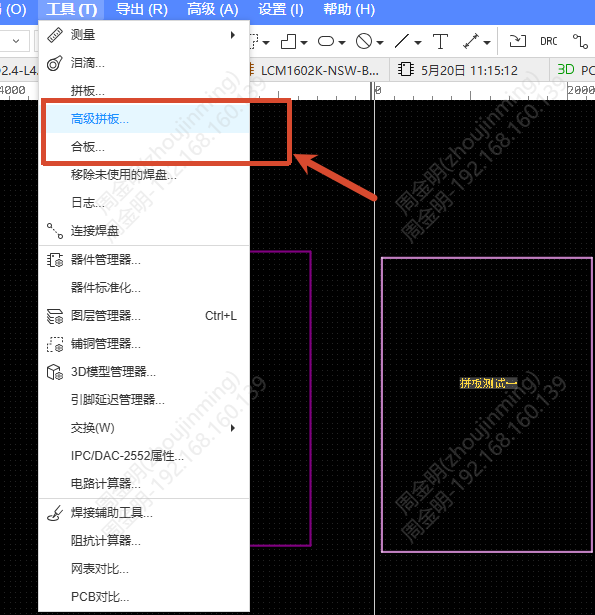
Top Menu - Tools - Panelize - Advanced Panelize (provided in private deployment only)
Panelize Settings
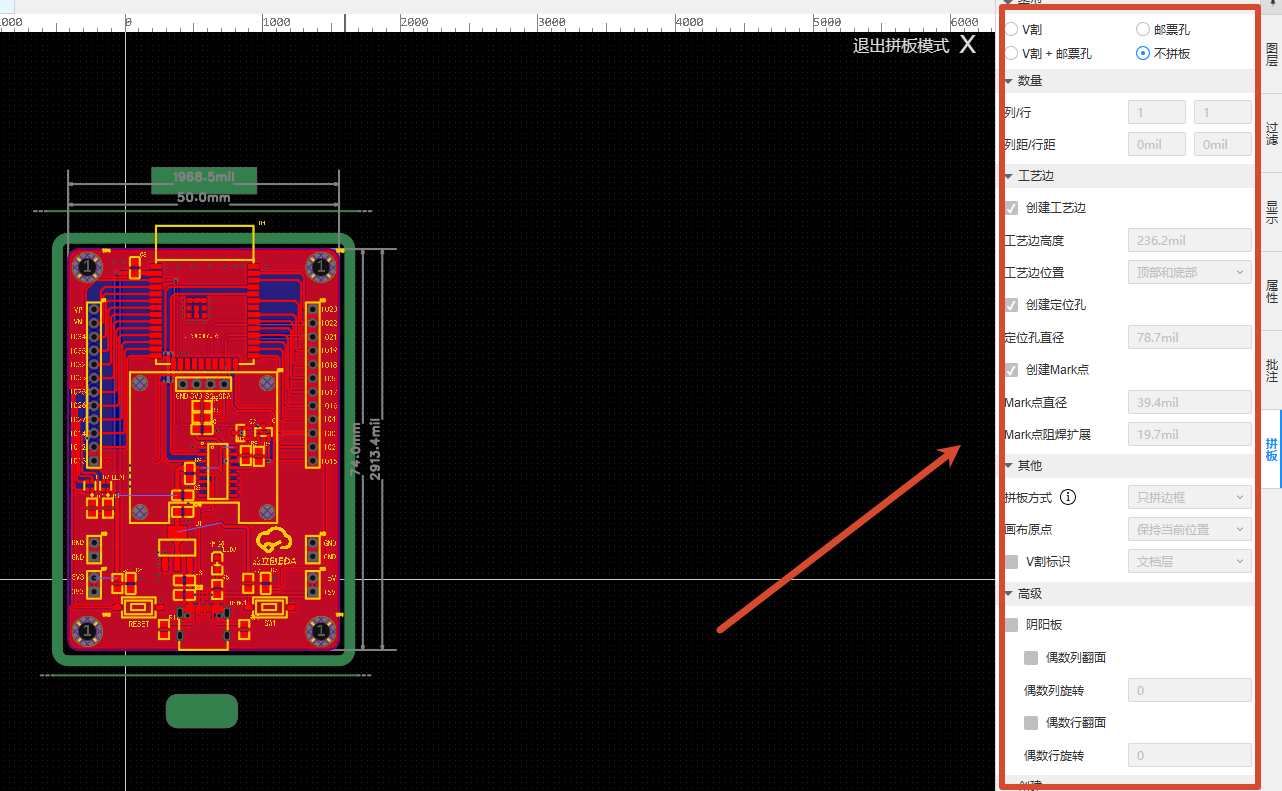
- After entering advanced panelize mode, set the panelize parameters in the right panel
- Select the panelize type: V-Cut, Stamp Hole, V-Cut + Stamp Hole, No Panelize. When only the border is panelized, only border data is output
- Set the array row/column count and spacing
Mirrored Board
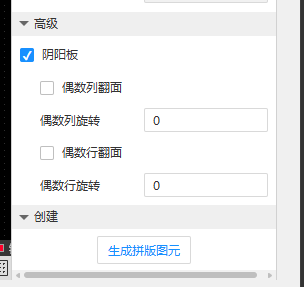
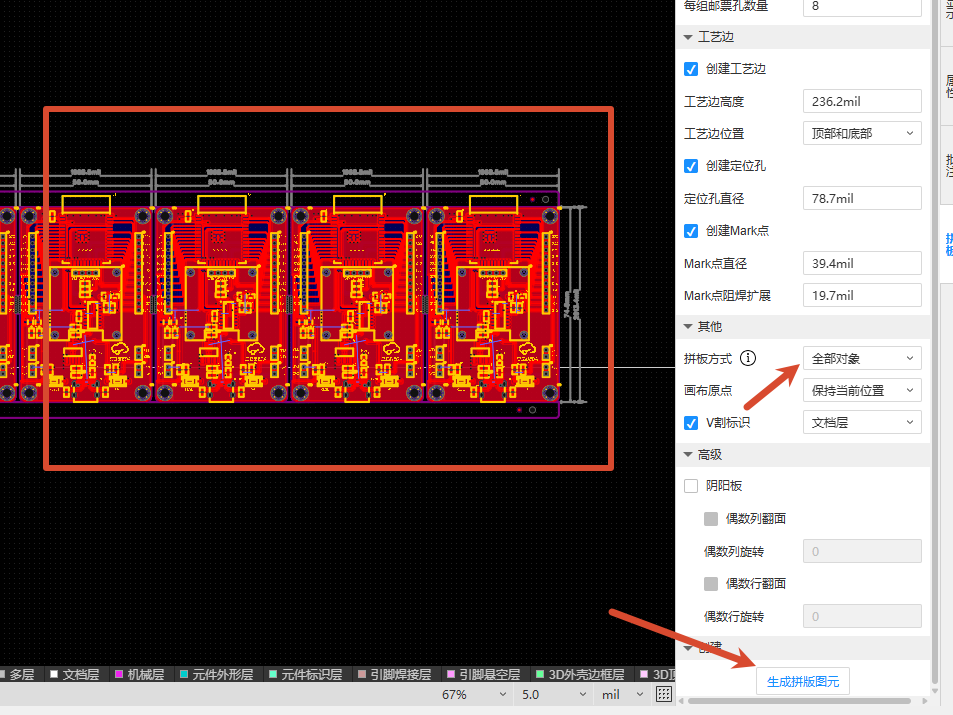
Check Mirrored Board (available only with All Objects), then you can set the flip and rotation angle of even columns/even rows. When both are checked, the angles accumulate.
Editing Stamp Holes and Mark Points
The preview interface supports dragging stamp holes, Mark points and positioning holes into position. The cursor changes to the move style when it moves over a corresponding area, and dragging moves all areas at the same position together. Row and column stamp holes cannot go outside the board outline, while Mark points and positioning holes can be dragged within the technology side.
Generating Real Primitives
Click Generate panelize primitives to convert the parametrically created primitives in the panelize into real PCB primitives and exit panelize mode; the panelize parameters are not kept (the panelize mode must be All Objects).
Exiting Panelize
Click the exit button in the upper right corner to exit.