Import and export FAQ
How to migrate the standard version project
Details
When we have the standard version project file, how to import the EasyEDA standard version file into the professional version?
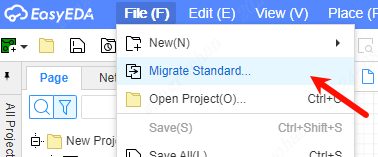
Open the professional version and click the "Migrate to Standard Version" icon on the start page to import the standard version file.
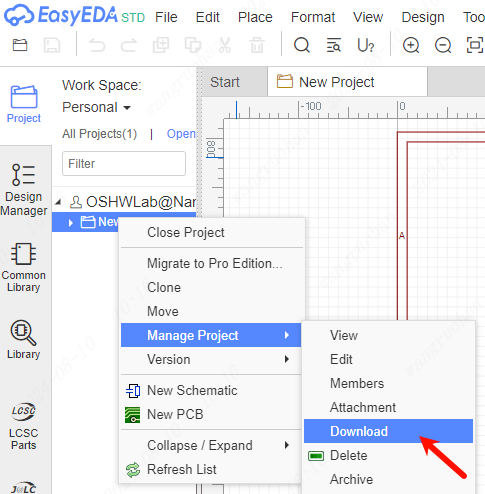
When the project is not opened in the professional version, first go to the EasyEDA Standard Edition - Project List - Right Click - Download Project,
You can also export the EasyEDA file JSON after opening the project file in the standard version Format 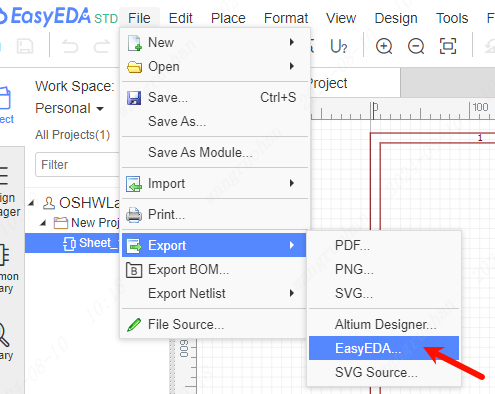
Then in EasyEDA Professional Edition - Import EasyEDA (Standard Edition), select ZIP compressed package or JSON file to import. 
If it is a library file, first export the EasyEDA format in EasyEDA Standard Edition, and then import it. When importing a schematic library, you can choose to generate devices or symbols when importing, or generate them at the same time.
Note: If there is a PCB, please be sure to compress the schematic and PCB together before importing.
- When the project is opened in the professional version, you can choose to import a single JSON file of the EasyEDA Standard Edition, which will be inserted into the currently opened project after importing.
How to import files from EasyEDA Pro Standard Edition
Details
1、Open the Professional Edition, click the "Migrate Standard Edition" icon on the start page to import the files of the Standard Edition.
2、When the project is not opened in the Professional Edition, first in EasyEDA Pro Standard Edition - Project List - Right click - Download Project, then in EasyEDA Pro Professional Edition - Import EasyEDA Pro (Standard Edition), select ZIP archive to import.
If it is a library file, then in EasyEDA Pro Standard Edition first export EasyEDA Pro format, and then import can be. When importing the schematic library, you can choose whether to generate devices or symbols, or both when importing.
Note: If there is a PCB, please make sure to import the schematic and PCB together after compression.
3, in the professional version of the project has been opened, you can choose to import EasyEDA Pro standard version of a single JSON file, the import will be inserted in the current open project.
How to import AltiumDesigner or Protel or Kicad files
Details
See: Import Altium file
For other file imports, see the Import and Export section.
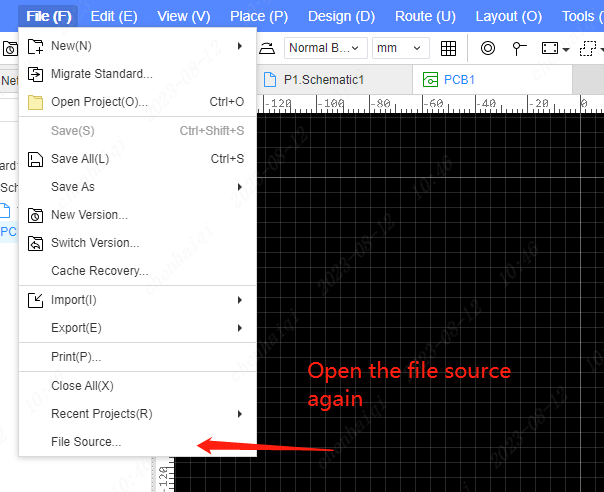
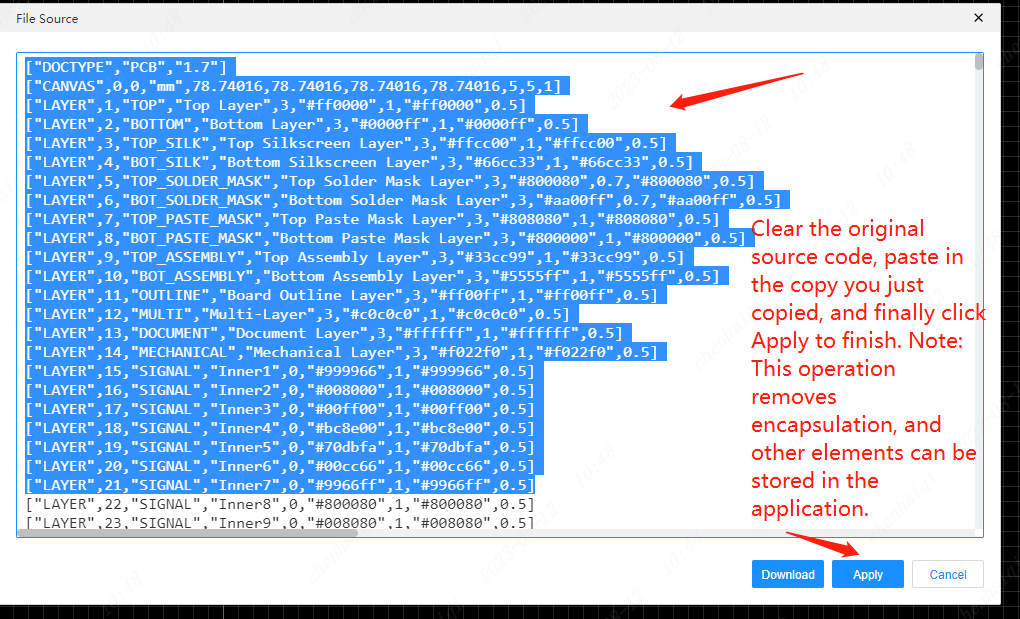
When the file cannot be saved, you can preserve the project content by pasting the file source code.
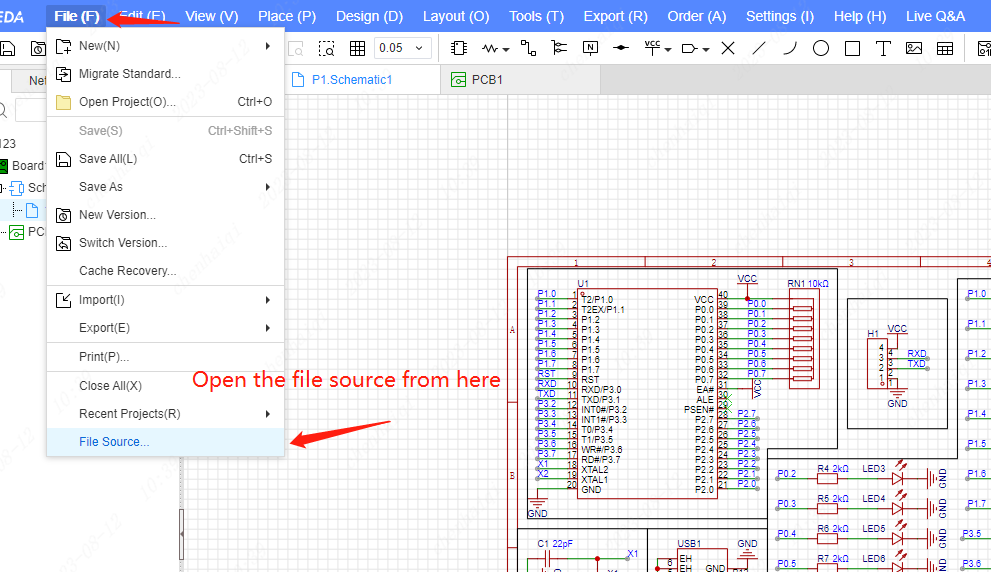
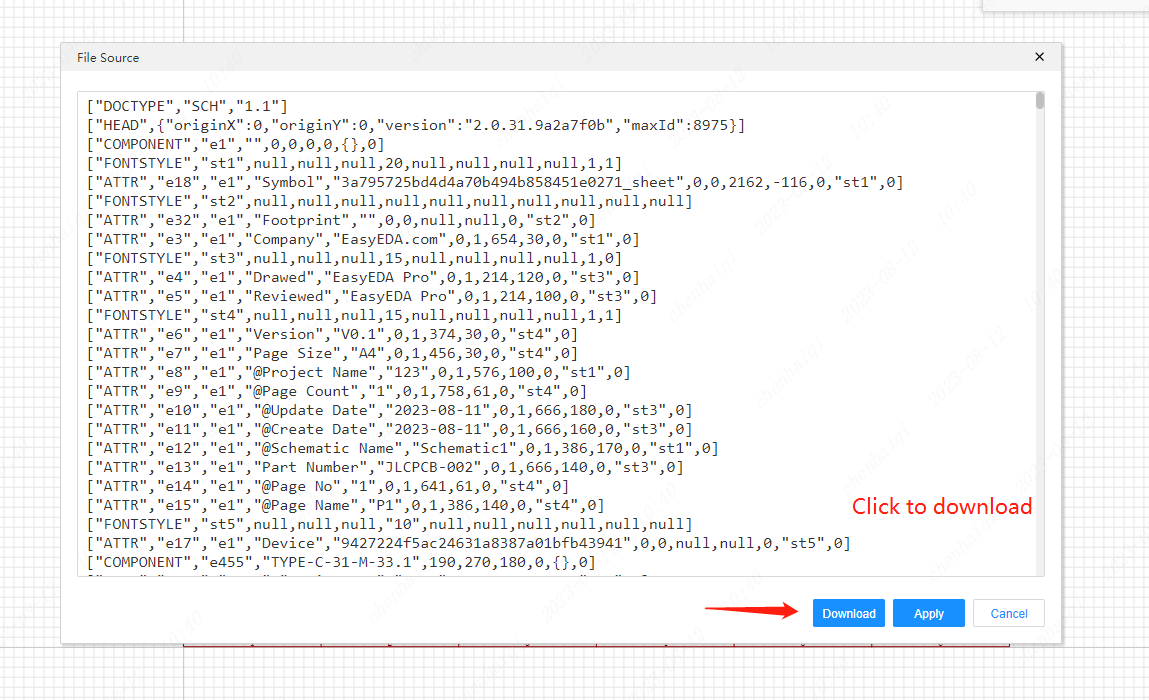
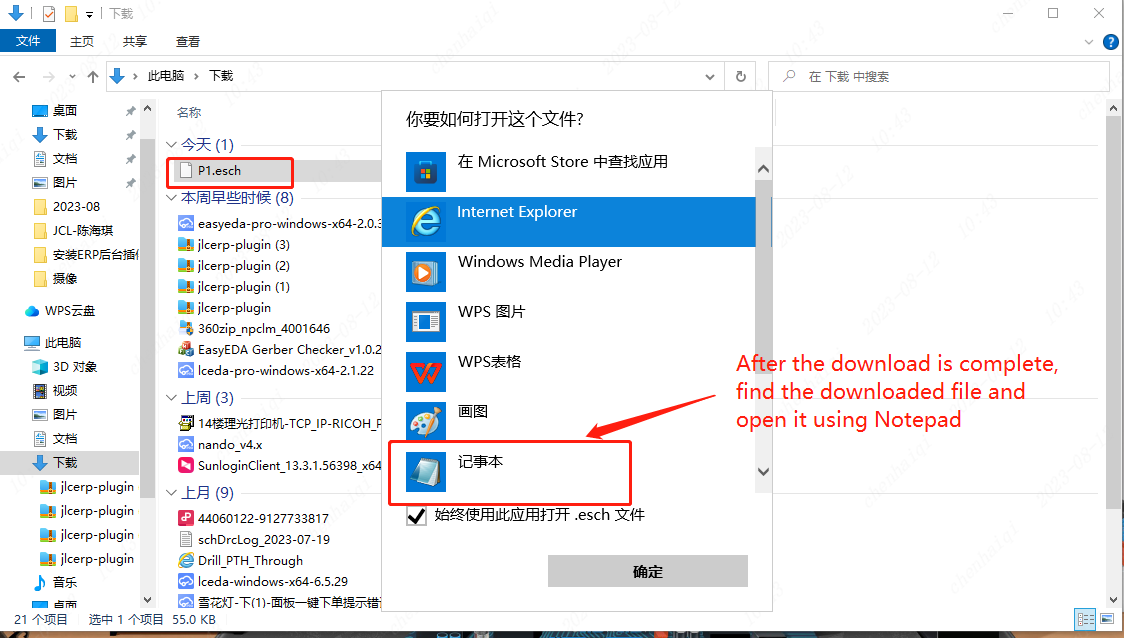
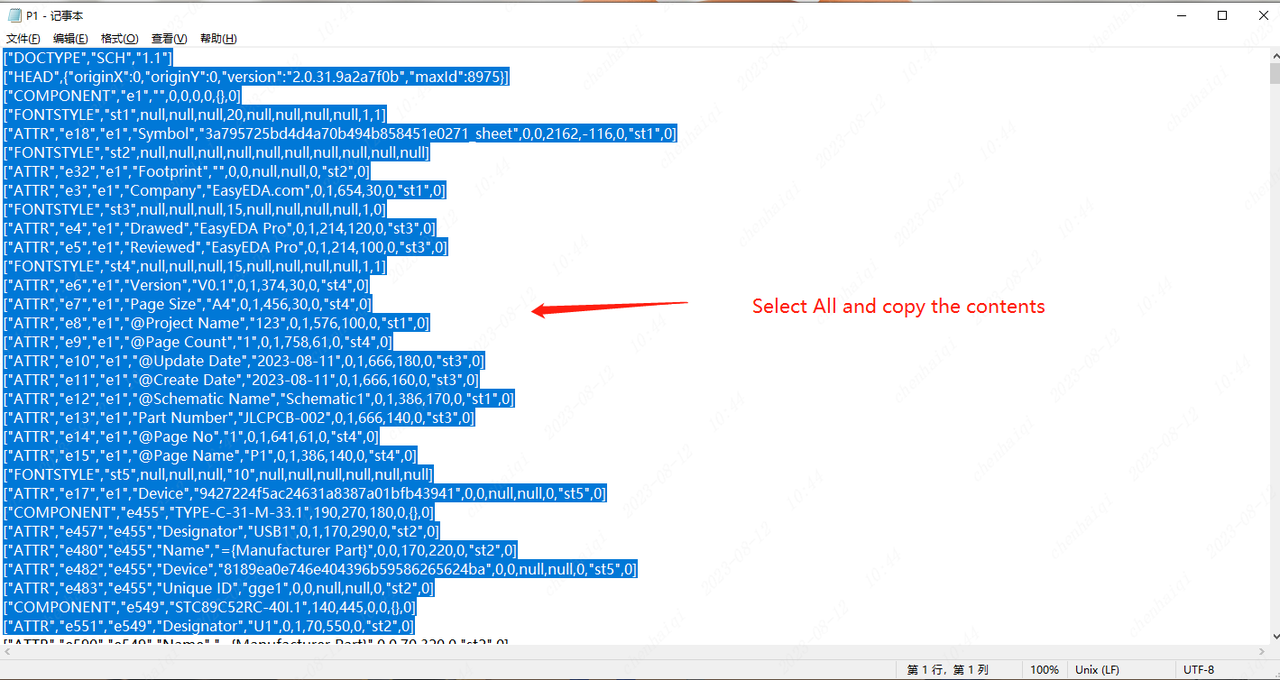
How to retrieve files in full online mode?
Details
The V3 professional version has updated the file recovery function. In fully online mode, three different methods are supported: Historical Records: Supports viewing project history, allowing users to view and restore project and document history. See tutorial below:https://prodocs.easyeda.com/en/faq/import-export/#how-to-use-the-historical-records-feature Projects Backup: Redirects to the project details page in the workspace, displaying a list of backups and enabling restore/edit functionality. See tutorial below:https://prodocs.easyeda.com/en/faq/import-export/#how-to-use-the-projects-backup-feature Recycle Bin: This recycle bin function allows users to view projects, libraries, and modules deleted within the last 90 days. Records older than 90 days are automatically cleared. See tutorial below:https://prodocs.easyeda.com/en/faq/import-export/#how-to-use-the-recycle-bin-feature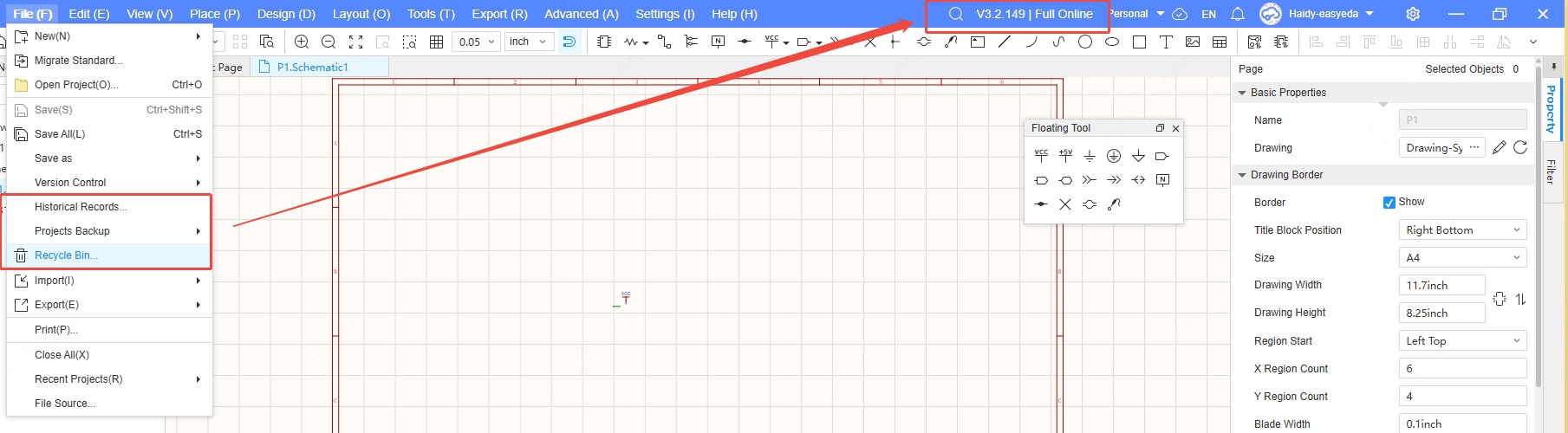
If you can't find your file in the above ways, you can search for it in the project path.If your file is not found here either, it means that your file is not saved. 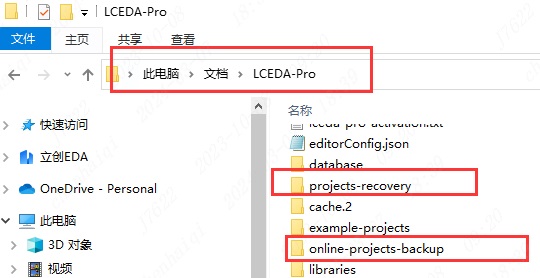
How to transfer personal project files to team project?
Details
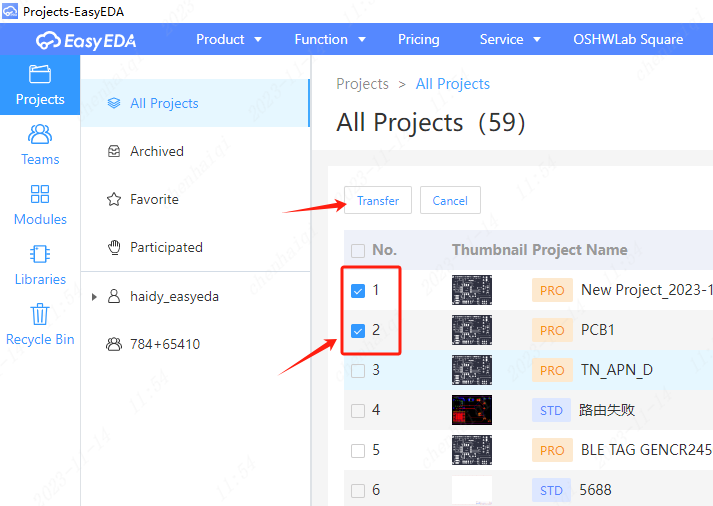
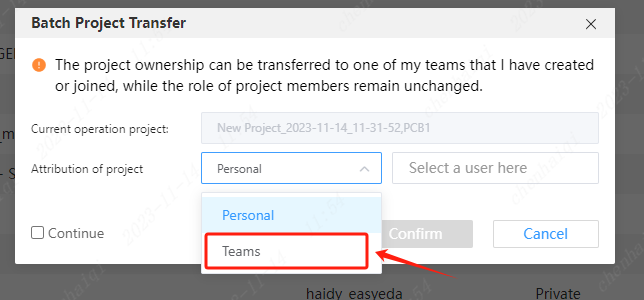
Step 1: Enter your personal workspace. Step 2: Start the transfer. 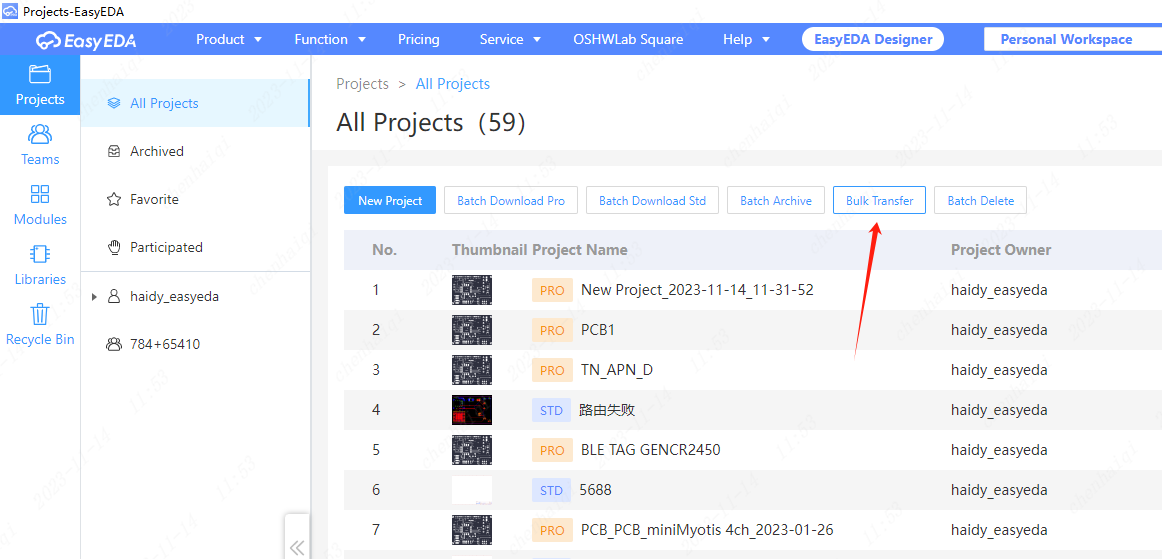
How to import files from offline mode into online mode?
Details
Step 1: Save the file locally. Project refers to the current schematic or pcb. Document refers to the entire engineering file, including schematic diagrams and PCBS. 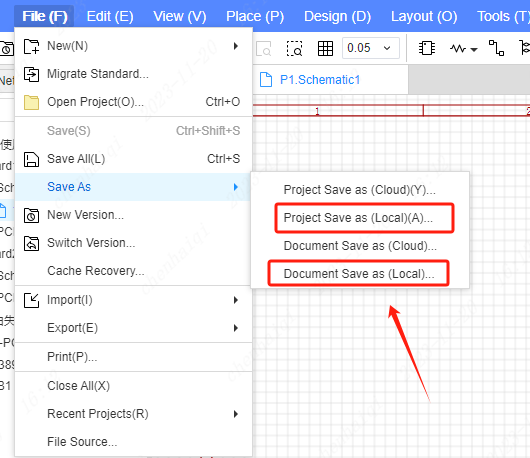 Step 2: Switch online mode.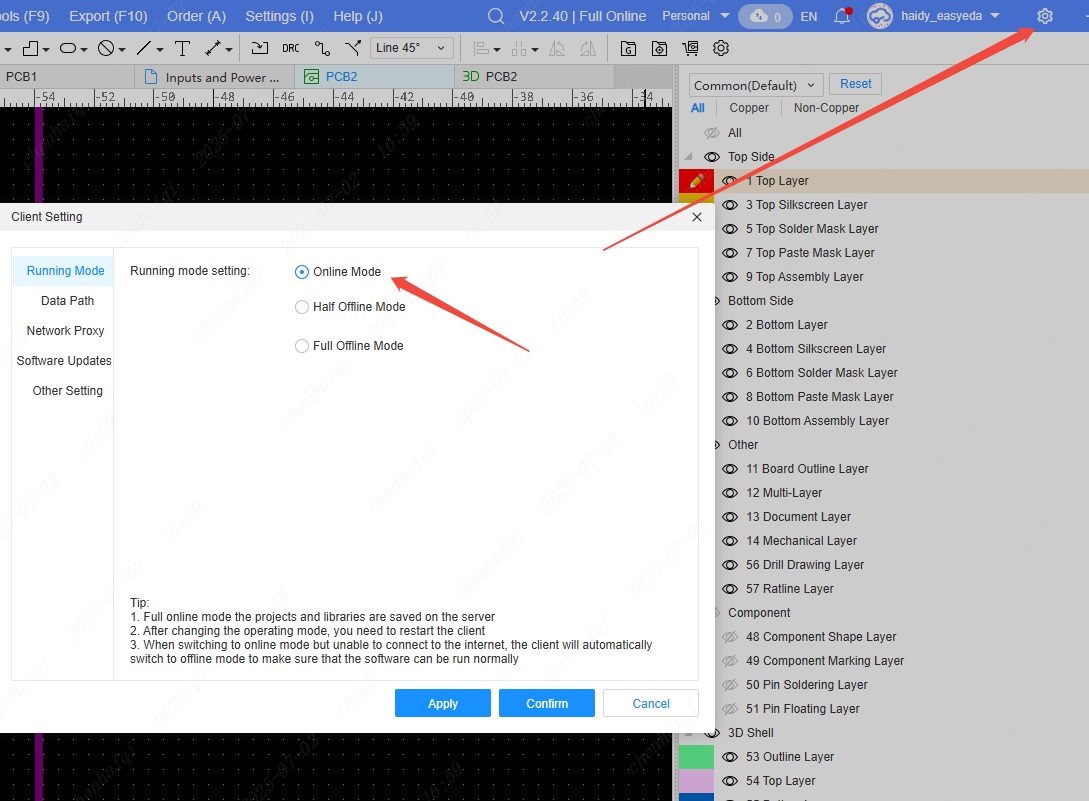
Step 2: Import the file 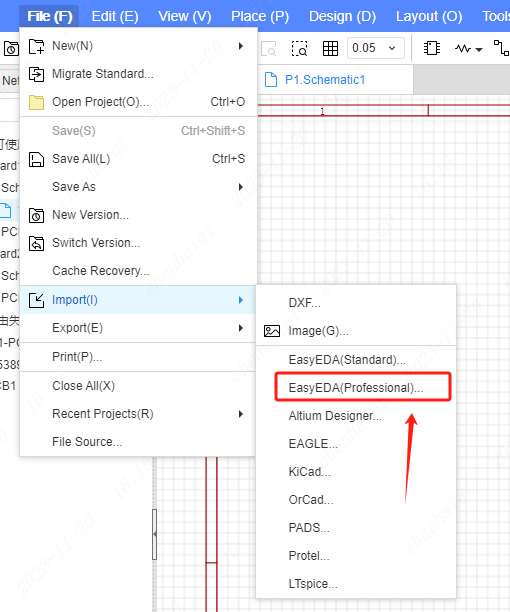
How to create a new folder and migrate the project to it?
Details
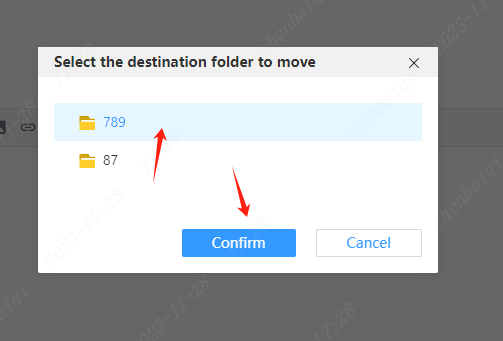
Select the personal work section and click the right mouse button to Creating a new folder. 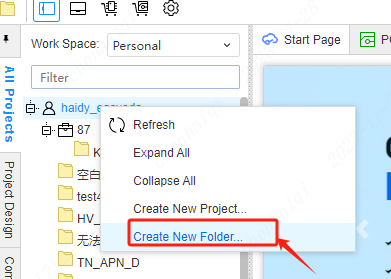
Select the file you want to transfer, click the right mouse button ‘Project Management--Edit’ will enter the personal workspace. Then you can carry out the transfer operation. 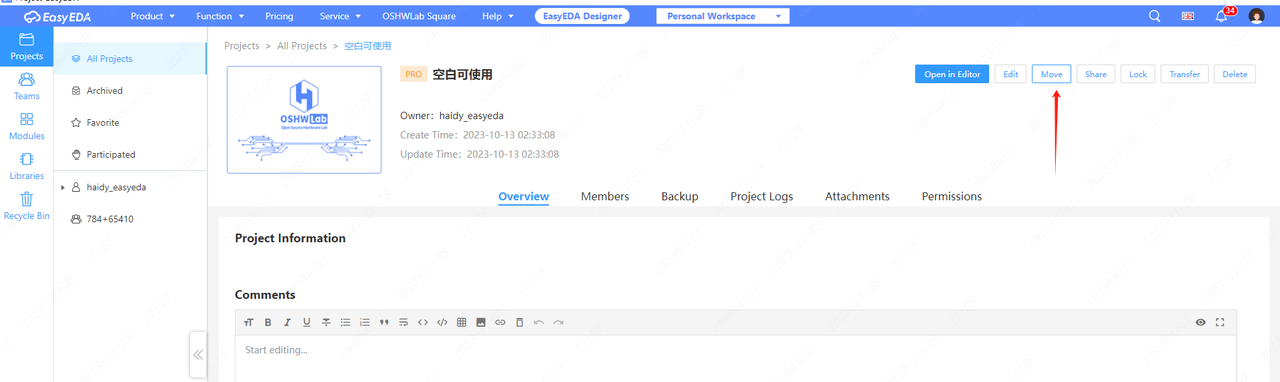
How do you set whether elements with the same attributes in a BOM table should be merged into a row?
Details
Primary: When the same attributes are exported to the BOM table, the values are merged and exported in a single row. Secondary: When the same attribute is exported to the BOM table, the value is exported separately, and its own row is exported. 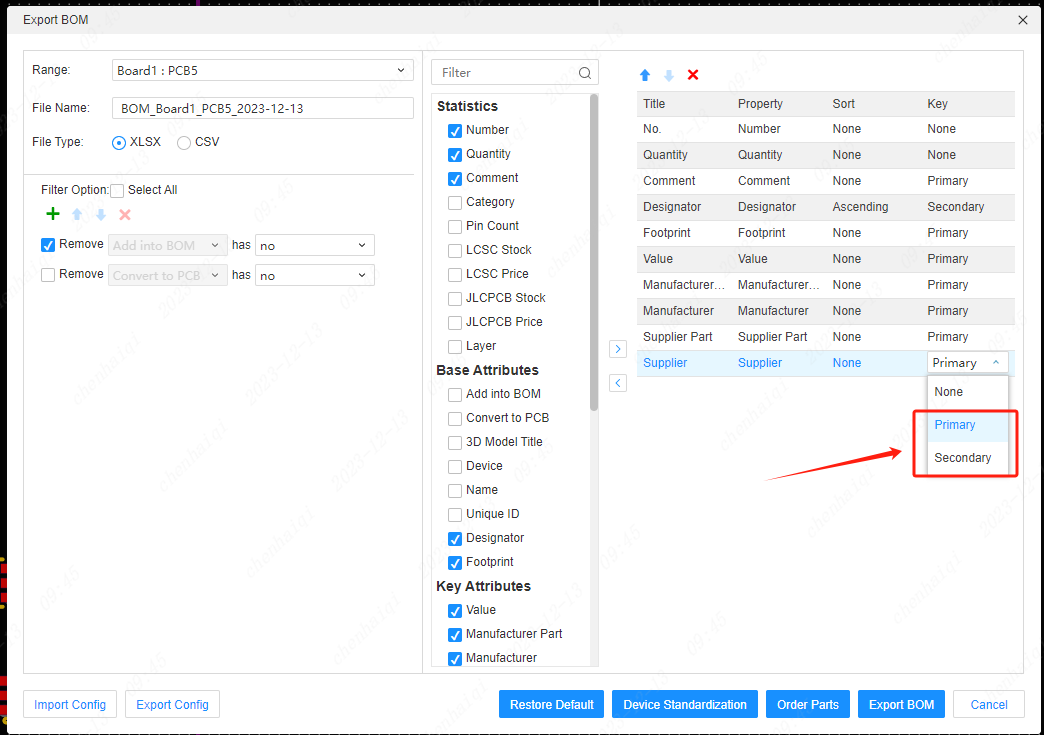
How to modify the project backup path for online mode?
Details
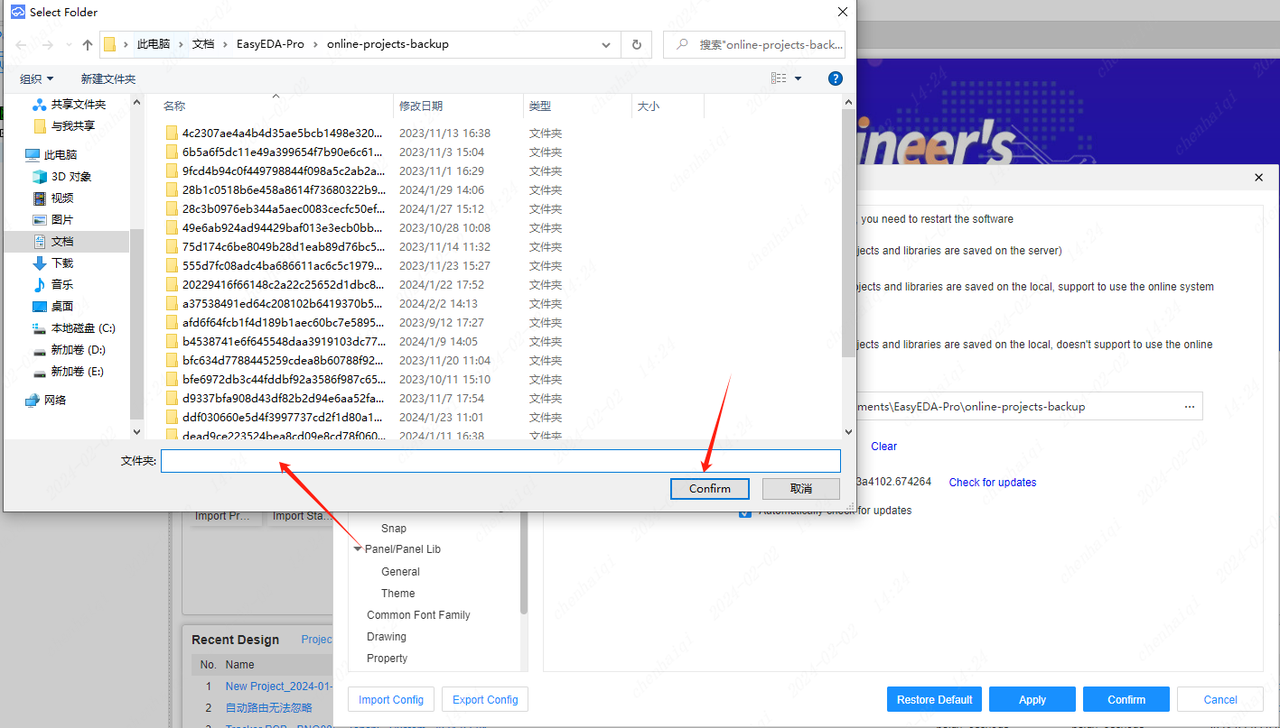
Go to Settings in the top menu bar and make changes there. 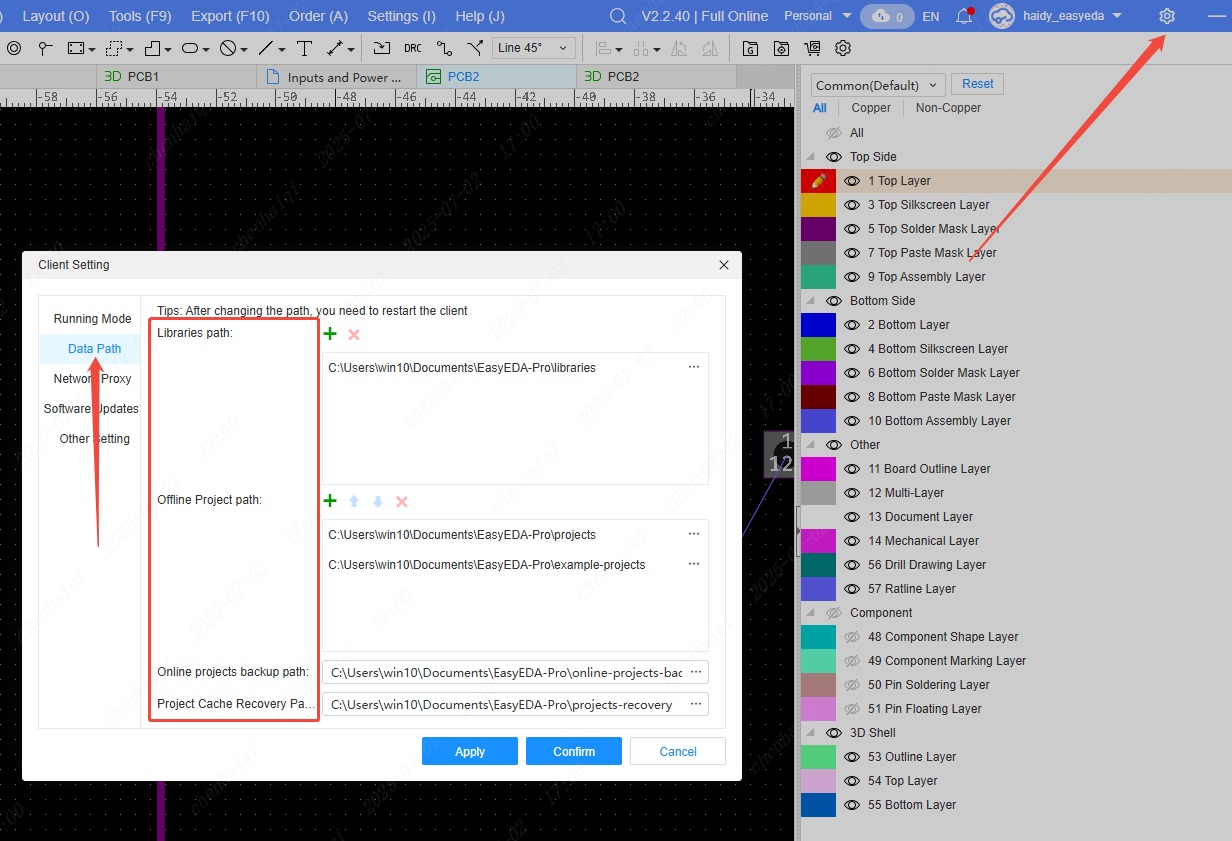
How to change project name in offline mode?
Details
Step 1: Open the project directory in offline mode. 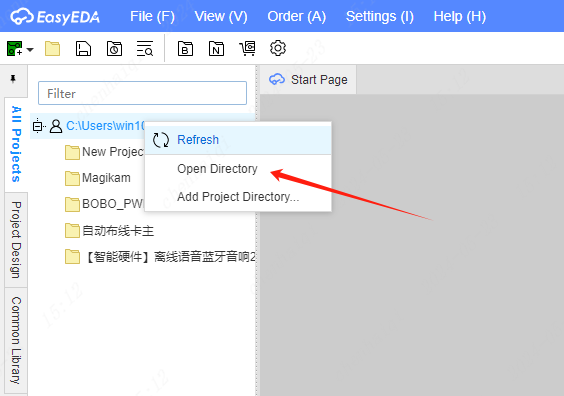
Step 2: Change the project name inside the project directory. 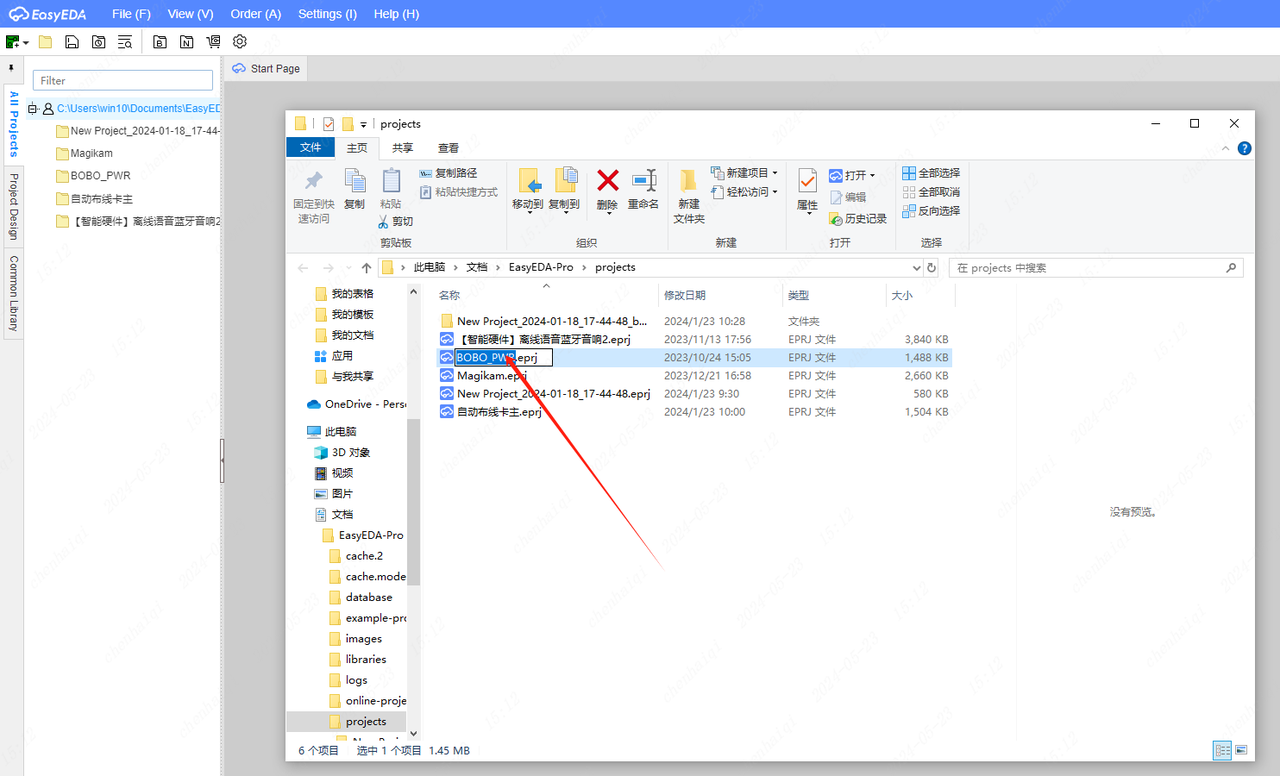
Step 3: Re-edit the editor after saving. 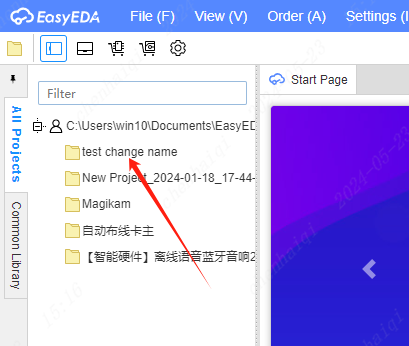
How to export gerber files?
Details
The gerber file can be found in the top menu bar under "File". 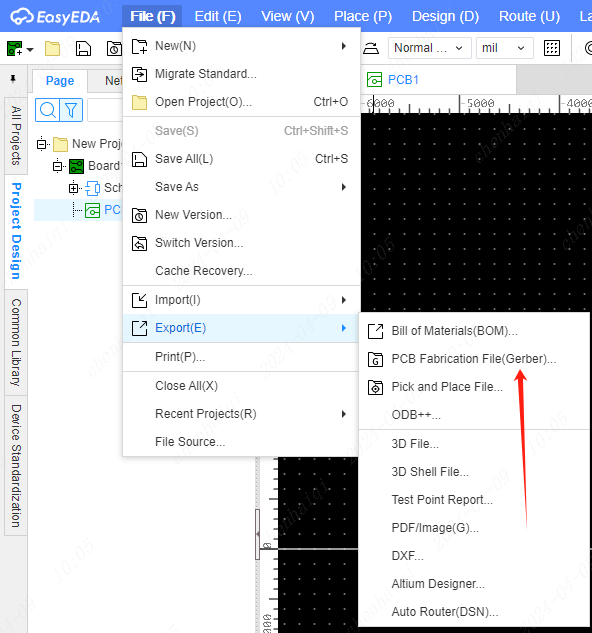
How do I turn an online epro file into an eprj file?
Details
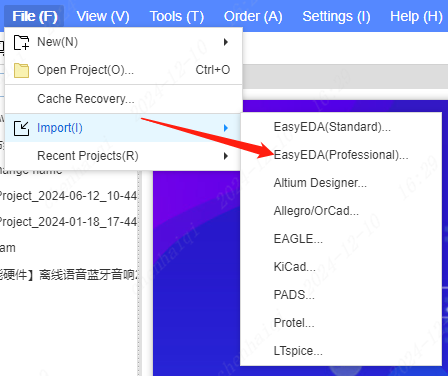
Since epro files are fully online files and eprj files are offline files, they cannot be converted to each other in one mode. Step 1: Import the epro file into offline mode first. 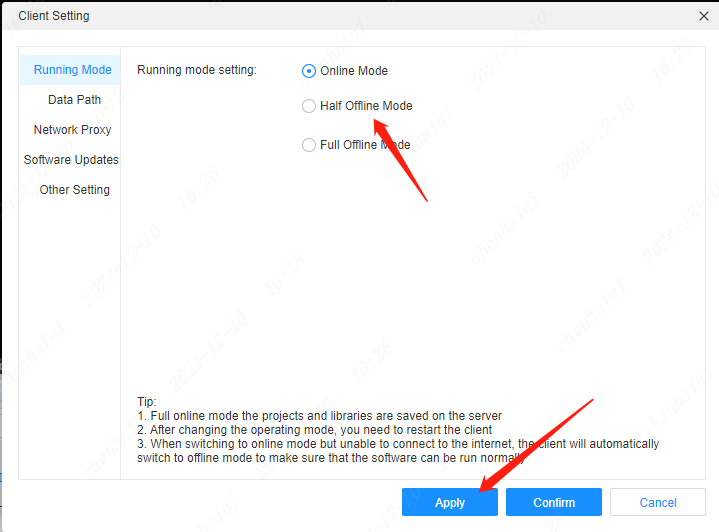
 Step 2: Find the project path for offline mode, then copy the path to My Computer for searching.
 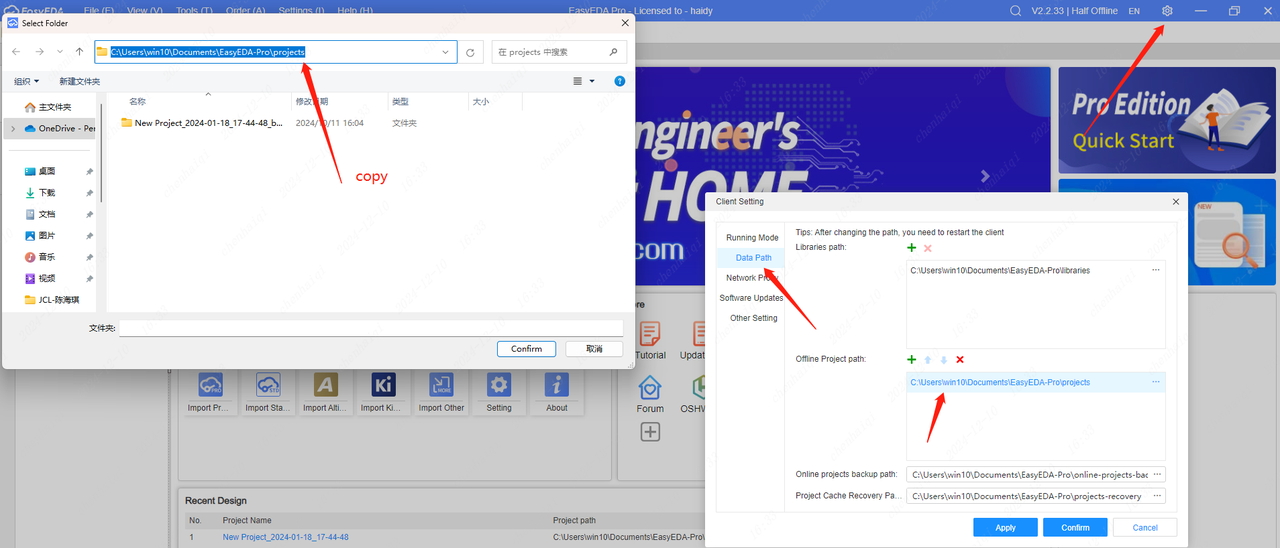 Step 3: Copy the path in My Computer to find the eprj file format.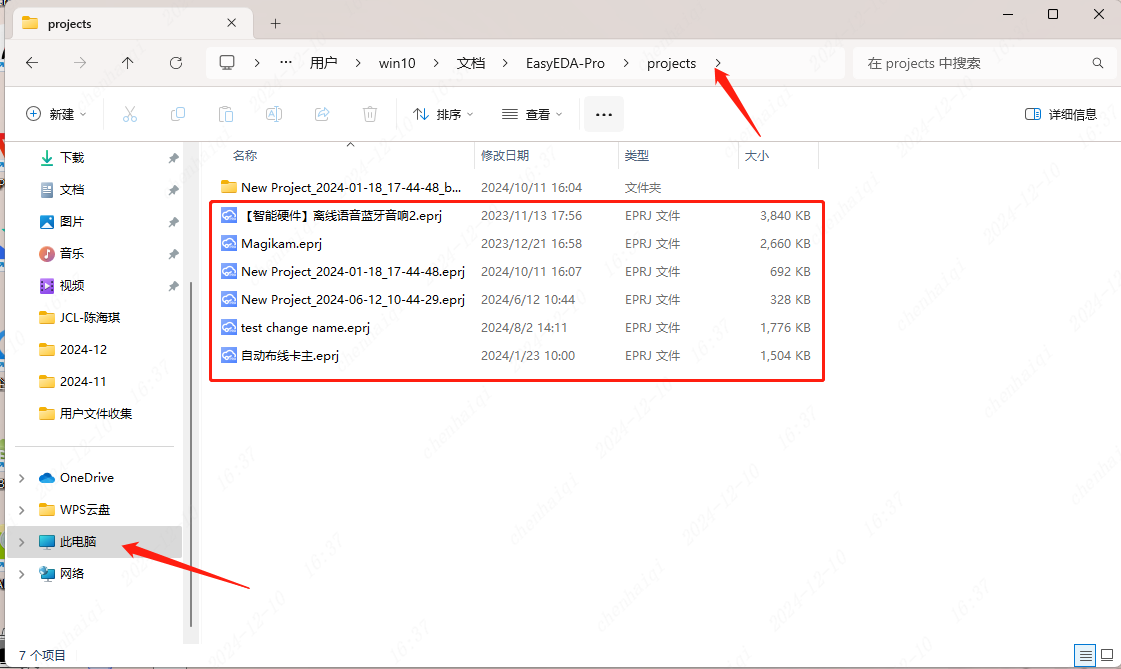
How to migrate files from online mode to offline mode?
Details
Firstly, export the file from online mode first. 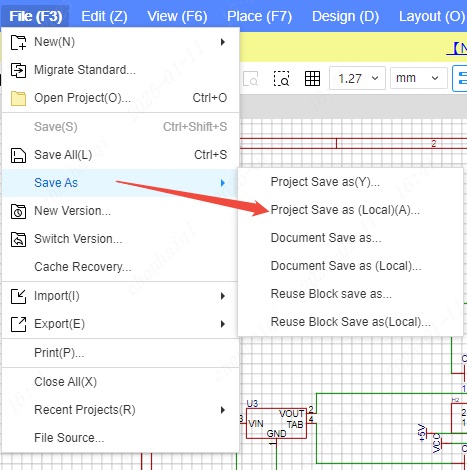
Then switch the online mode to offline mode. 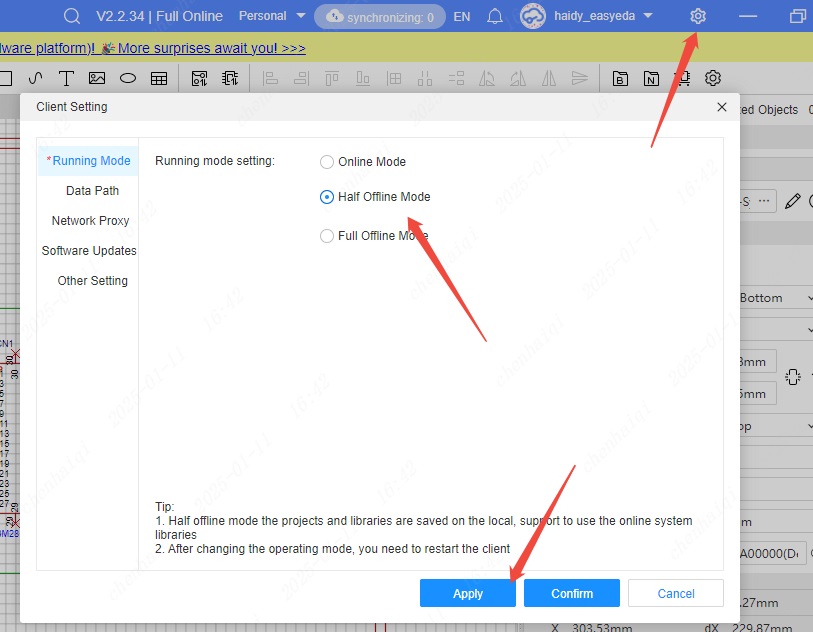
Finally, just import the file into offline mode. 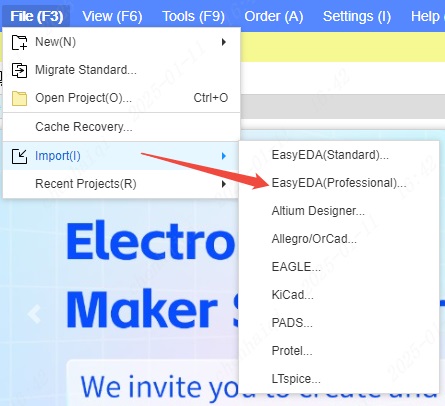
How can I batch migrate files from the standard version to a single file in the professional version?
Details
1.Go to your personal center interface - All Projects - Batch Download Standard Version 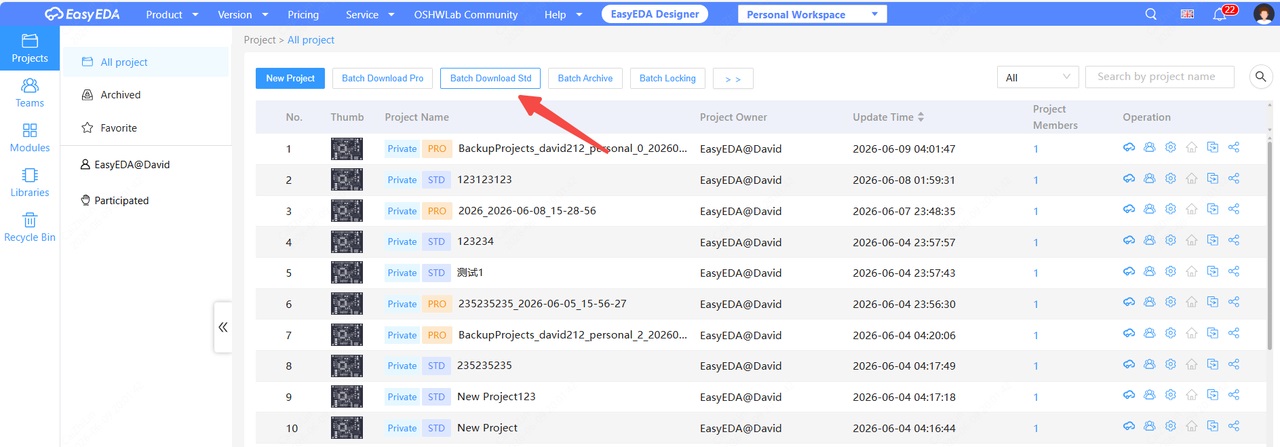
2.Select all standard version projects and download. 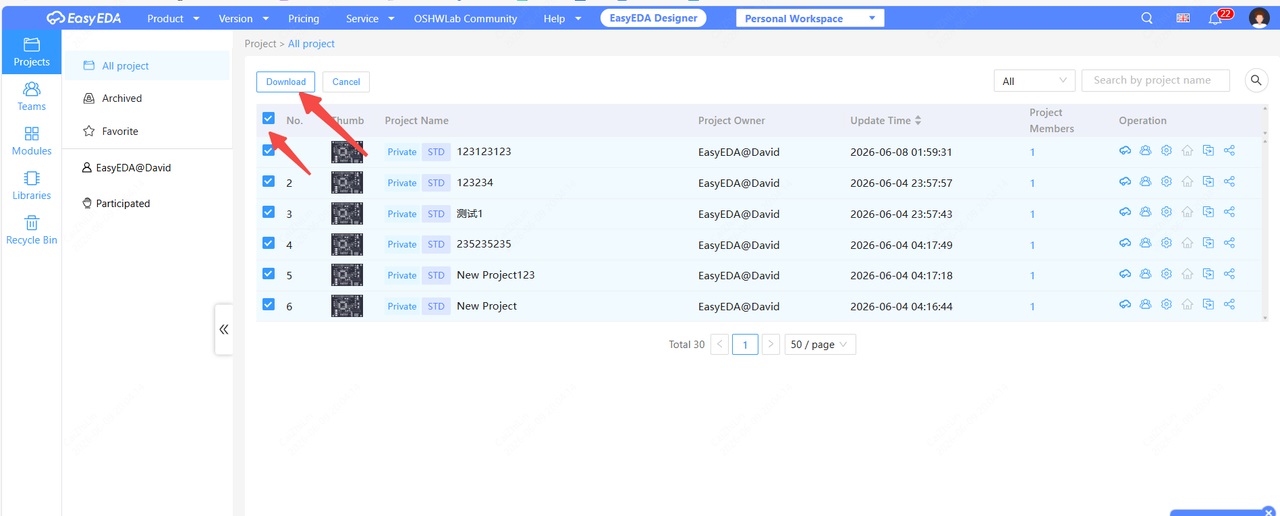
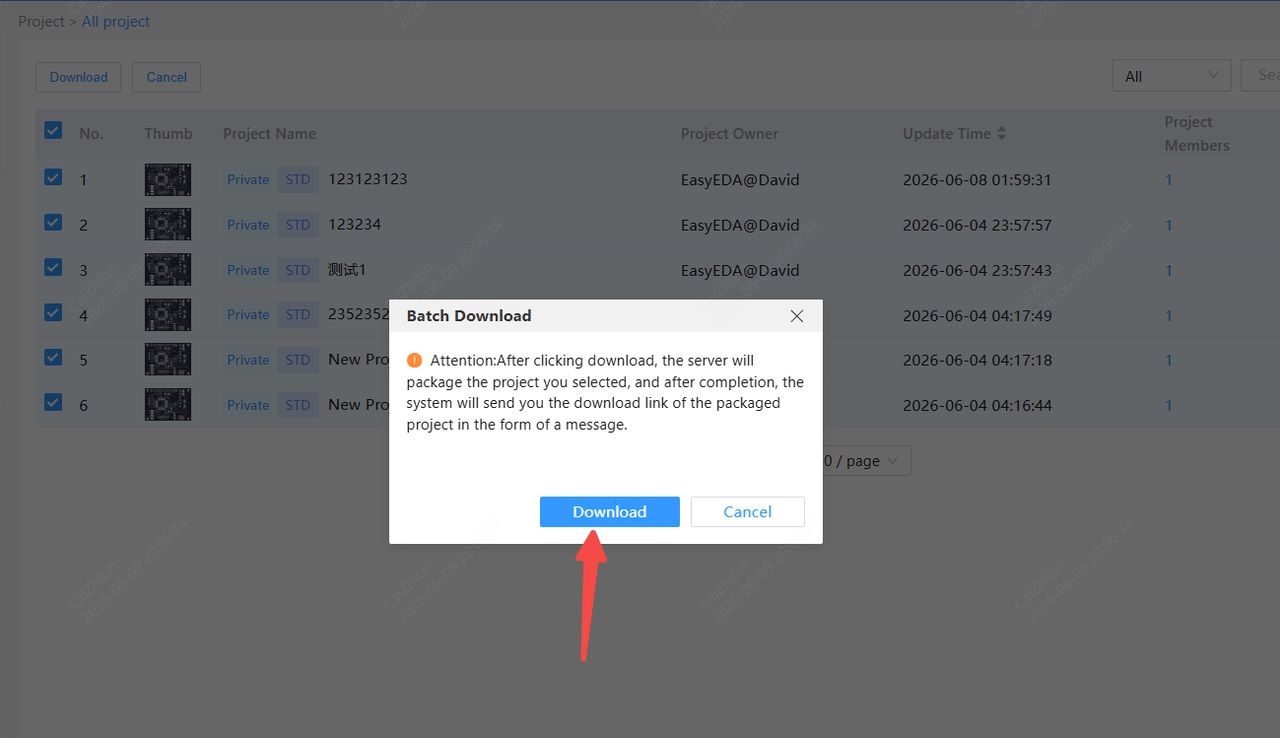
3.A pop-up message will appear indicating that the system will send a download link for the packaged file via internal message. You will then be automatically redirected to the internal message page; click the blue text to download the file package. 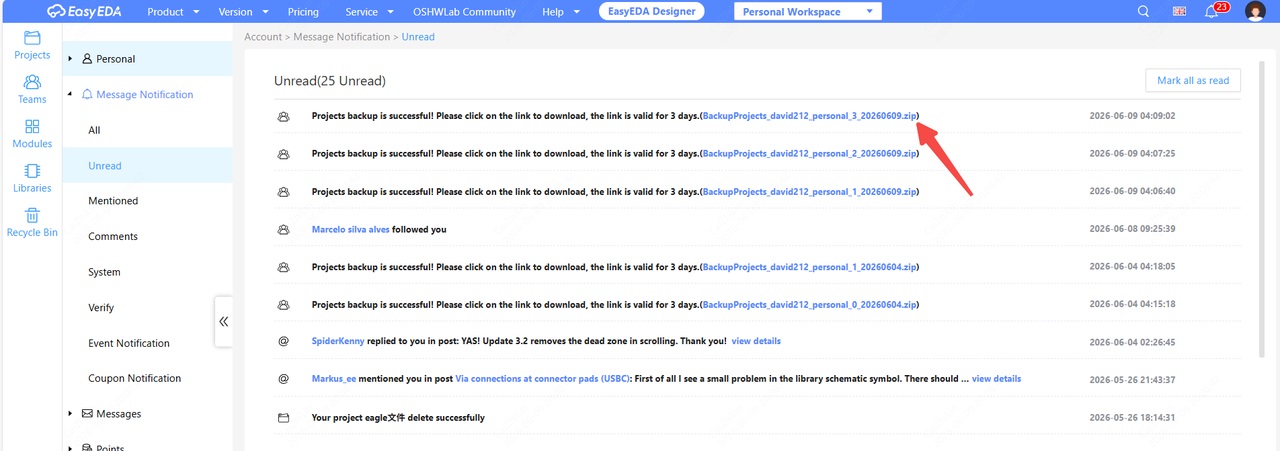
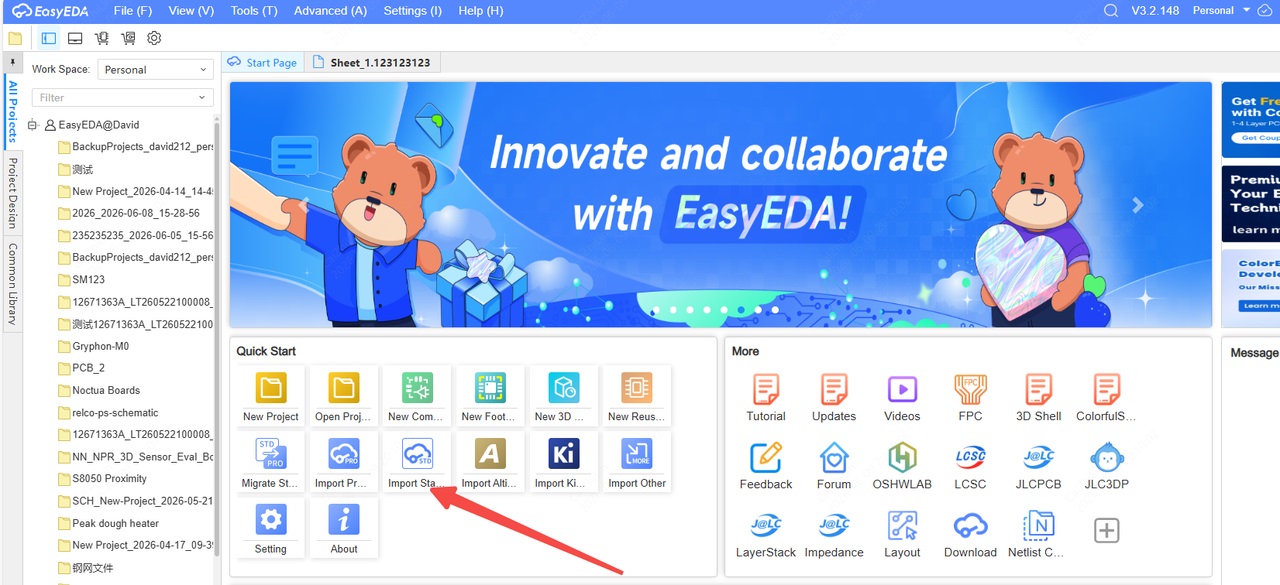
On the start page after switching to the professional version, click "Import Standard Version" and import the downloaded file package. 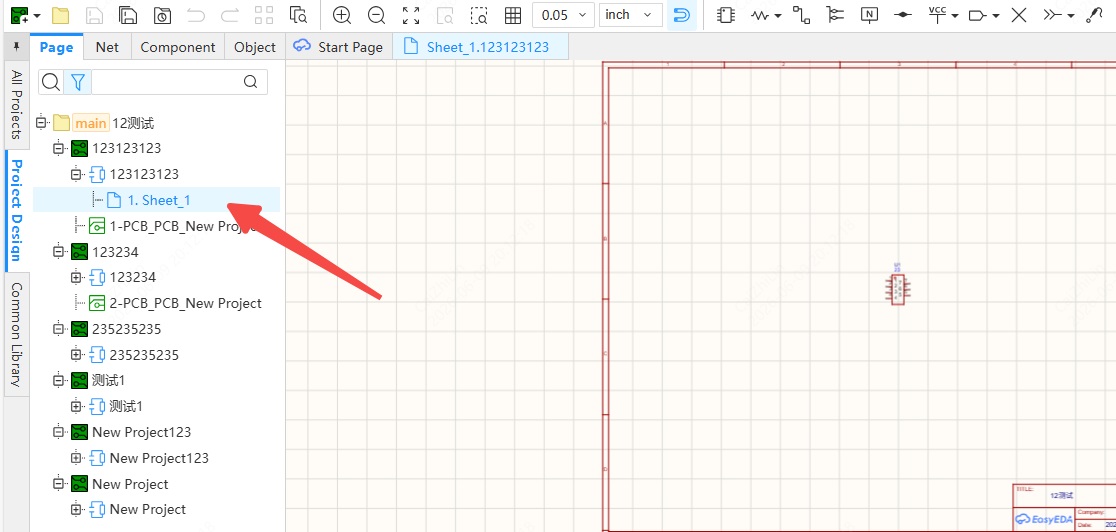
This allows you to batch import standard version projects into the professional version. Note that this method can only import standard version projects into a single project file; the ability to migrate projects one by one is currently under development and is expected to be added in future updates.
How to use the "Historical Records" feature?
Details
The V3 professional version adds the function of viewing project history, allowing users to view and restore the historical records of projects and documents. Top menu bar — File — Historical Records 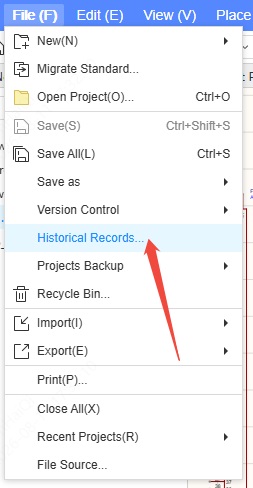
Clicking the "Historical Records" option will display a project history list on the right, allowing users to view the history of Current Documents and Current Projects. The history is divided into time periods, and the list displays the record's date and the most recent editor. Selecting a record allows users to click the "Restore" button to restore it. 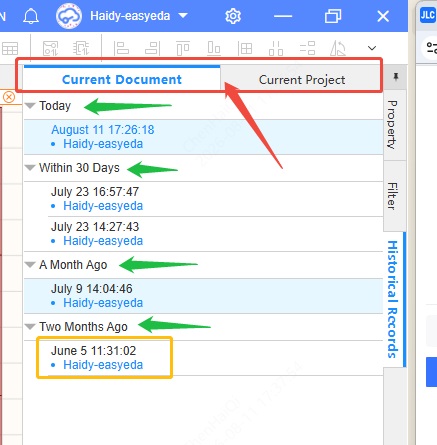
The project history list can be expanded and collapsed. Editing or modifying projects is not allowed while viewing the project history. Clicking the close button on the right will exit the project history viewing function. 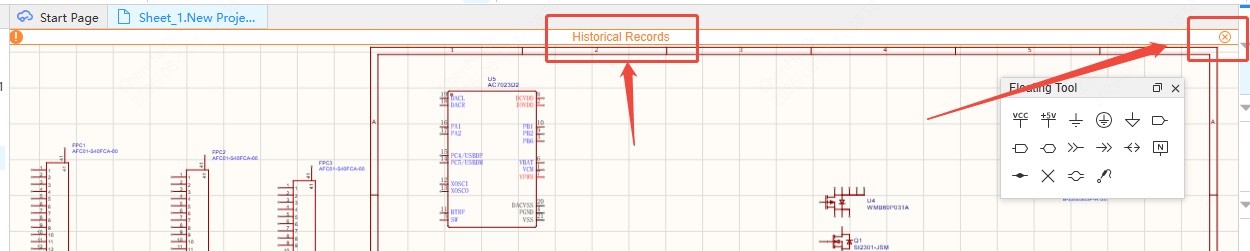
Under the Current Project page, you can expand the saved history, using schematic pages or PCB layout pages as the basic unit, which means more detailed records. 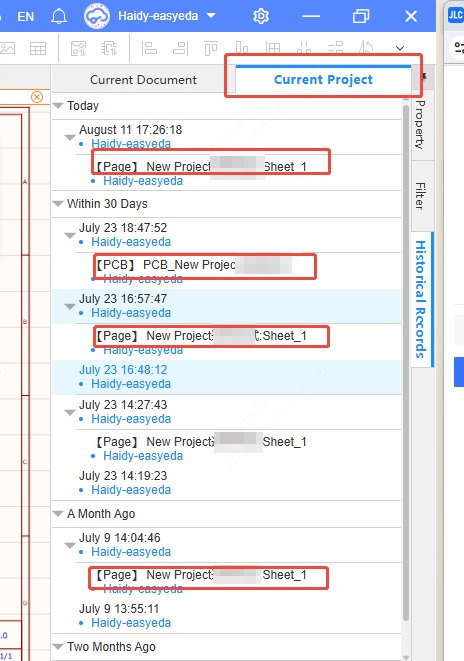
Additionally, if you open the "Historical Records" feature in the PCB interface, there is a comparison function. You can select two records for PCB comparison. 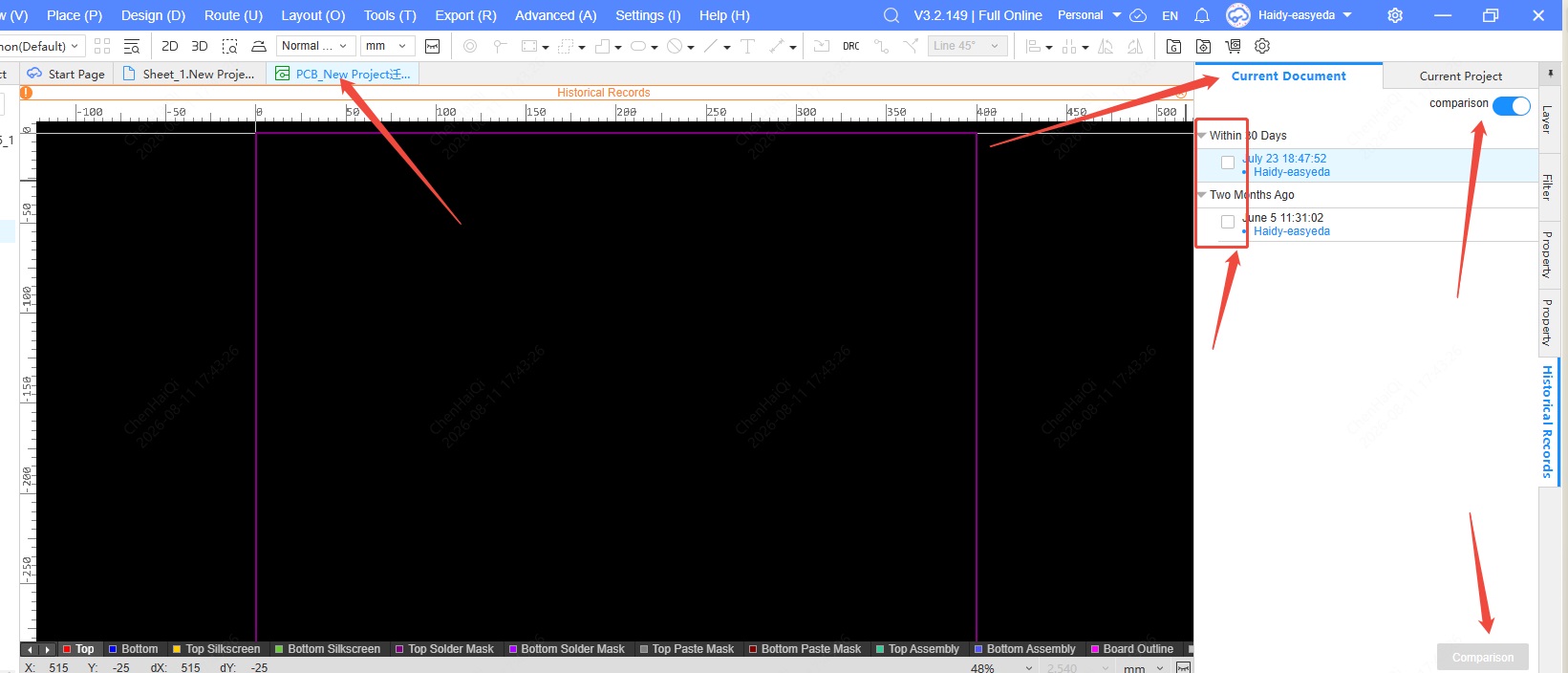
When comparing PCBs, the bottom box will display the comparison results, and the results list will show the differences between the objects and their types. You can also click on the differences to locate the specific object. 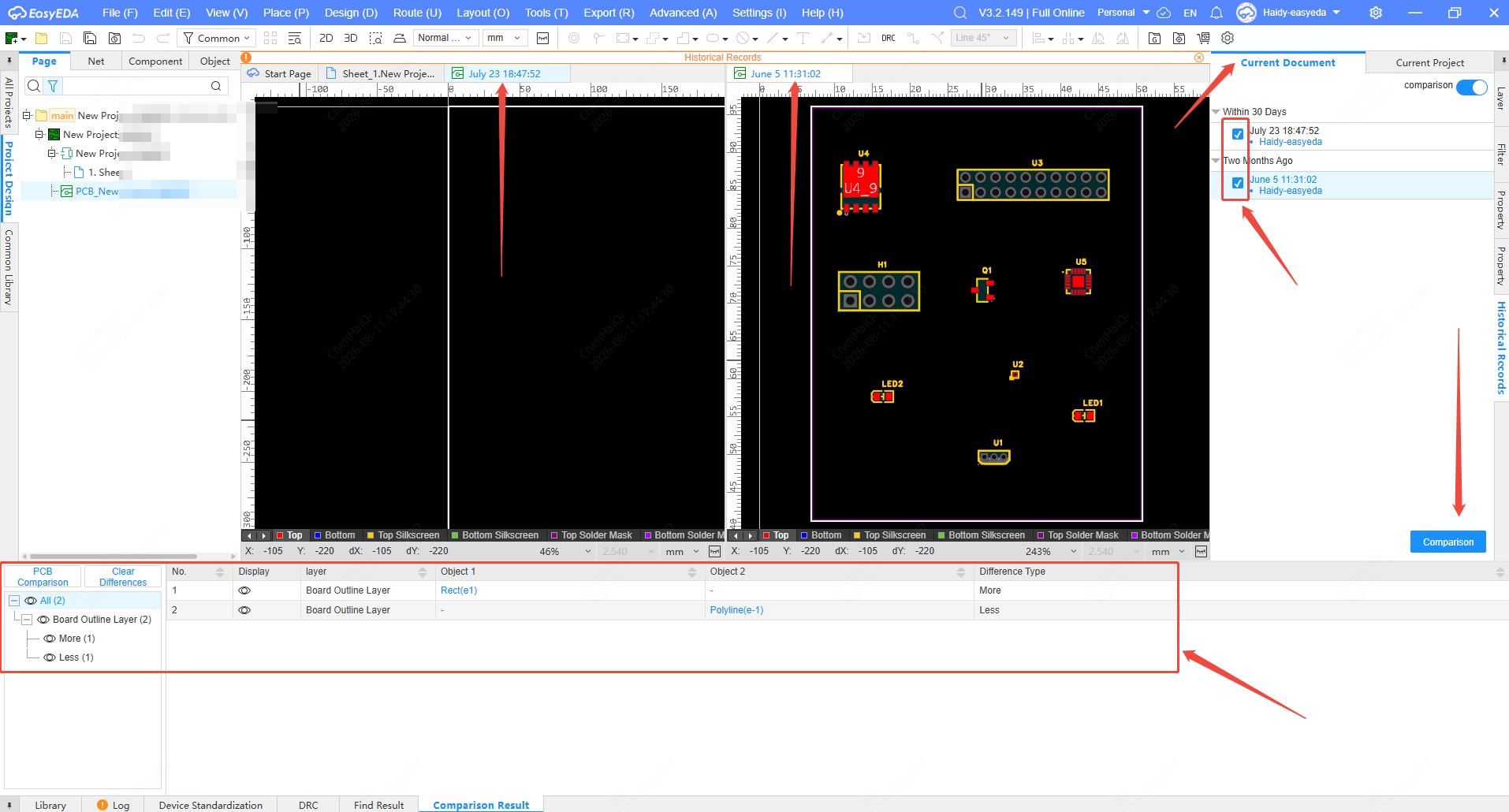
How to use the "Projects Backup" feature?
Details
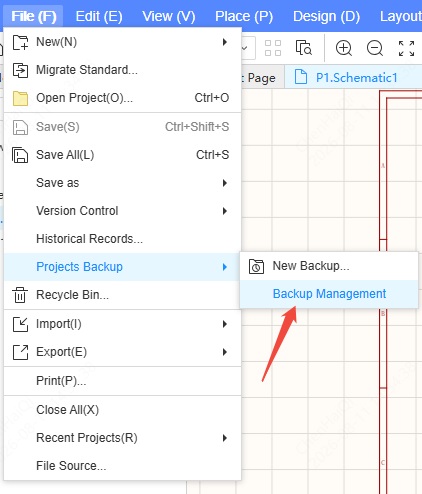
Top menu bar — File — New Backup/Backup Management 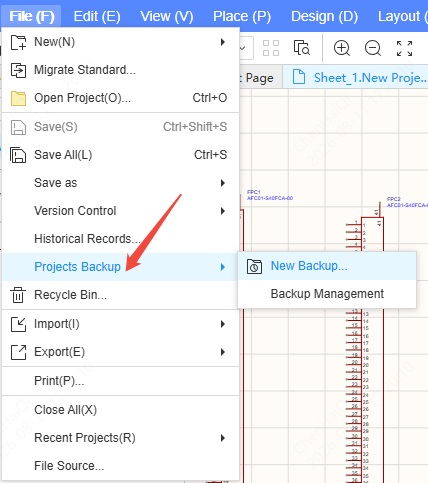
To back up your project to our EDA Professional Edition cloud server, there are two backup options: Manual backup and Auto backup. Auto backup needs to be enabled in the settings. Simply check the "Enable" box to start automatic backups. Automatic backups can only create a maximum of 10 backups; any additional backups will overwrite older ones. The automatic backup interval can be set from 10 to 120 minutes. 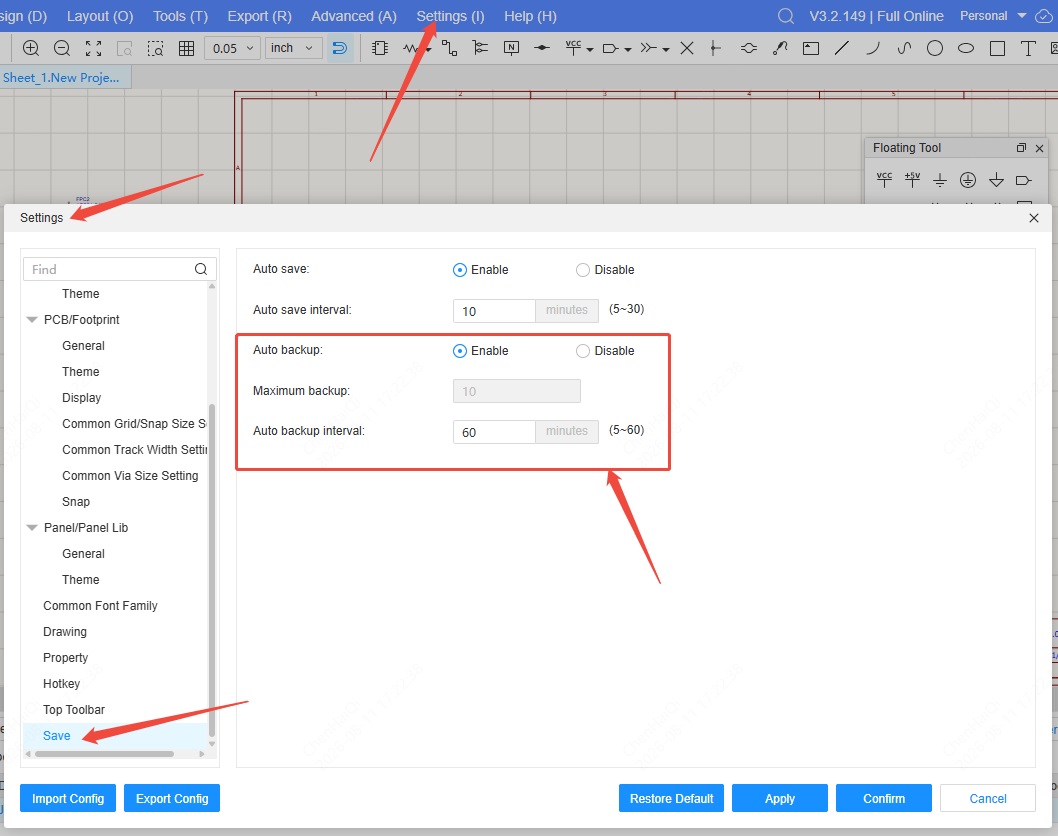
To create a manual backup, click "New Backup," enter a name and description in the pop-up window, and click "OK" to back up the data to the cloud. 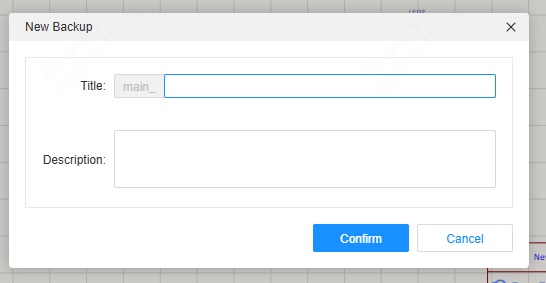
Backup Management stores Manual and Auto backup files, which you can find here to open, view, edit, download, and delete. 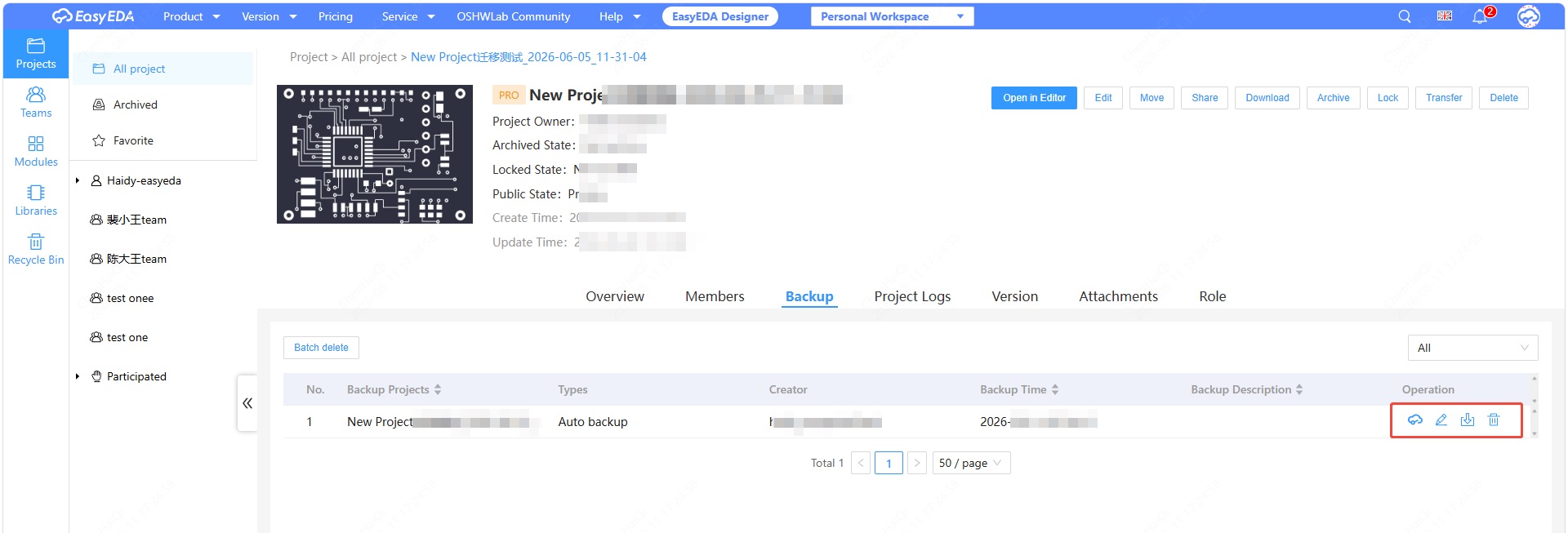
How to use the "Recycle Bin" feature?
Details
The V3 professional editor supports a recycle bin feature, where users can view projects, libraries, and modules deleted within the last 90 days. However, records older than 90 days will be automatically cleared and cannot be recovered. Open your project, Top menu bar——File -——Recycle Bin. 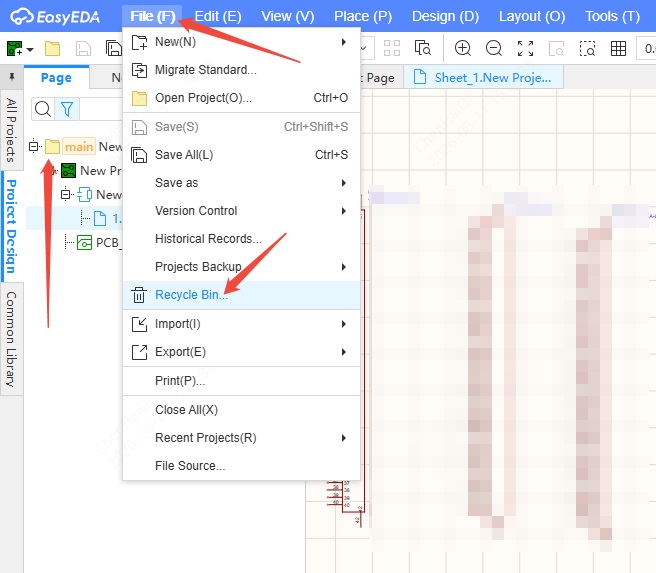
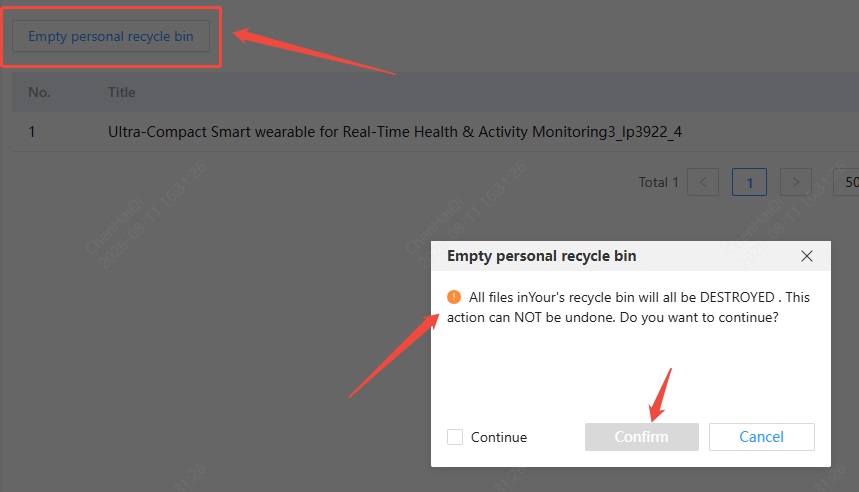
Clicking the "Recycle Bin" option will redirect you to the workspace's recycle bin page. On this screen, you can select "Project," "Libraries," or "Modules" to view recently deleted items. Users can restore or permanently delete files from the list. Emptying the recycle bin is also supported. Please note that files permanently deleted cannot be recovered. 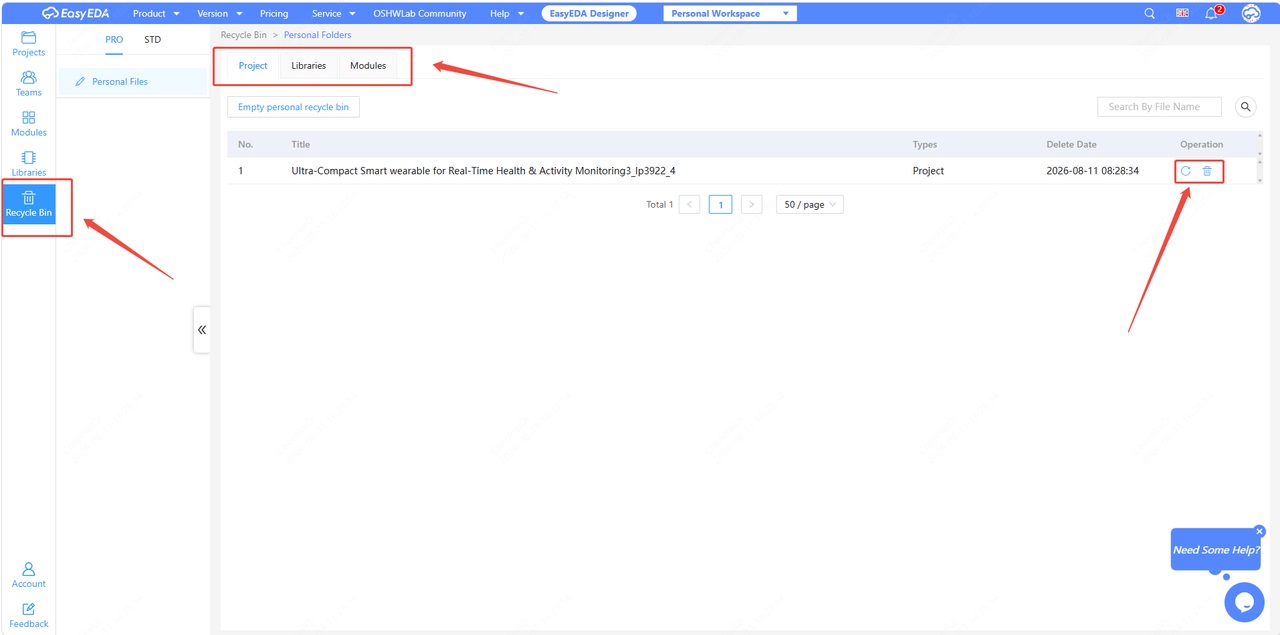
How to recover files in Half-offline mode?
Details
Since Half-offline mode cannot save files to the cloud, its file recovery function differs somewhat from that of fully online mode.It only has two functions: Historical Records and Projects Backup. 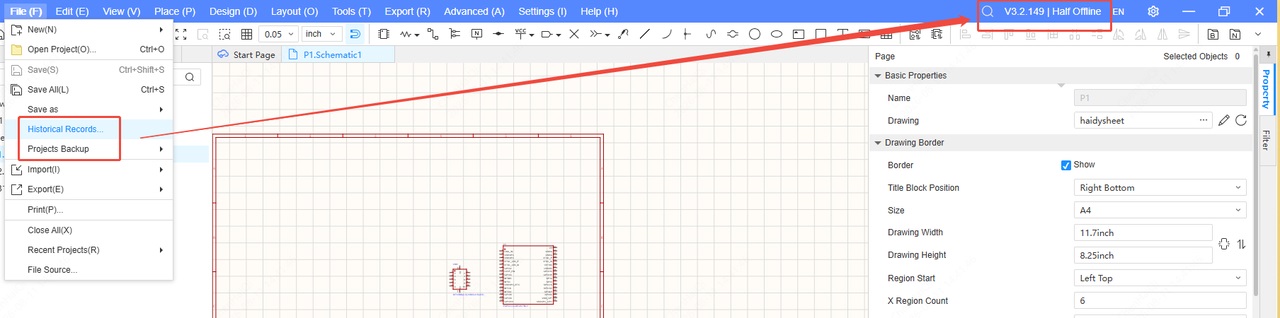
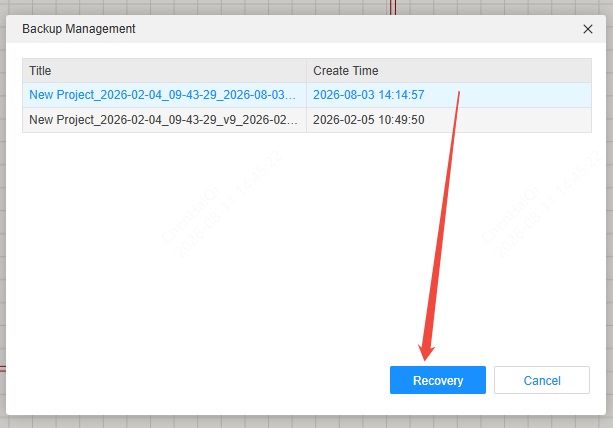
Historical Records works the same way as the full online mode. See the tutorial below:https://prodocs.easyeda.com/en/faq/import-export/#how-to-use-the-historical-records-feature However, the Projects Backup feature is a little different from the full online mode. It will not redirect you to your personal workspace; instead, it will directly display Backup Management in the system.You can choose to restore from the backup file.